
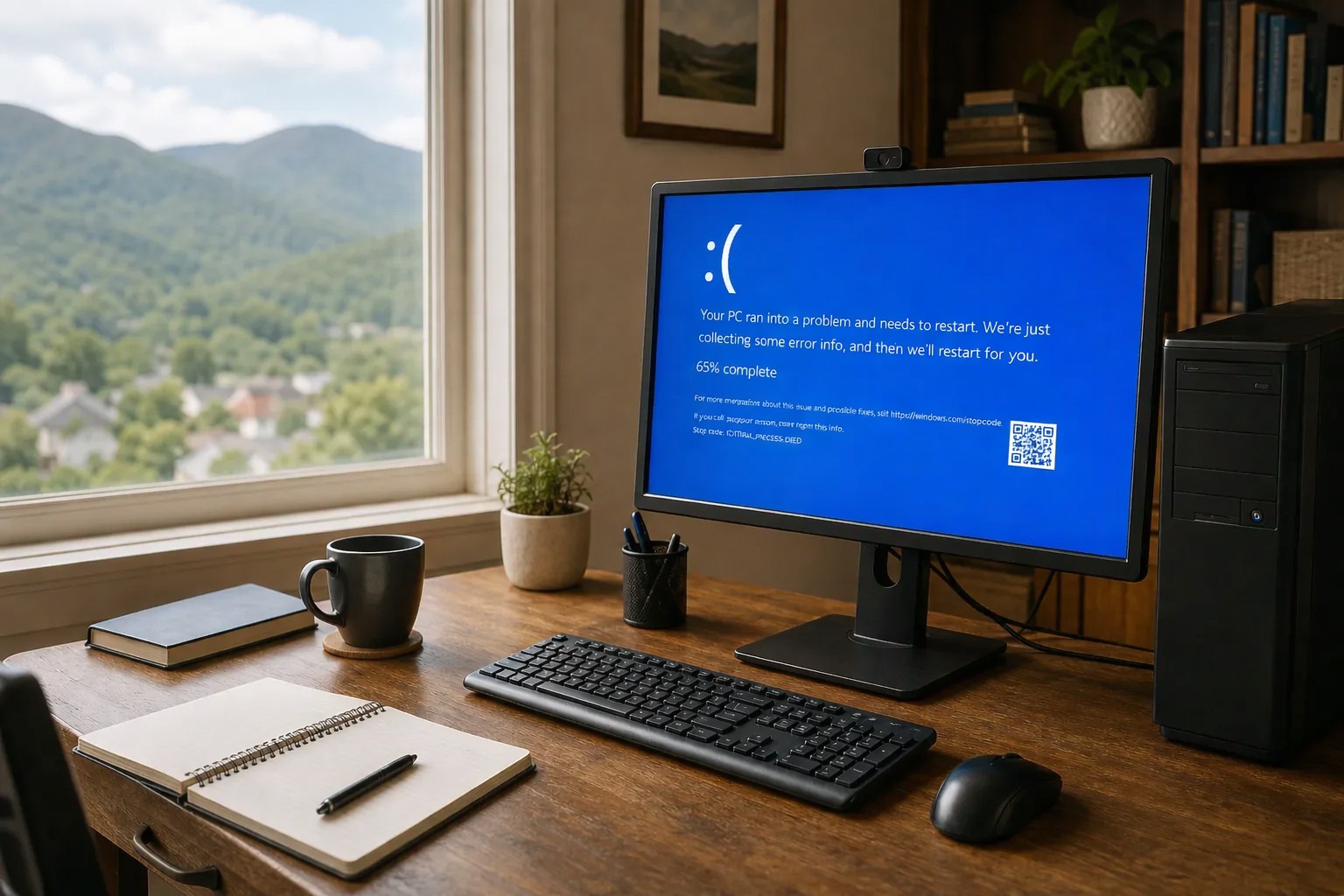
A blue screen can be unsettling because it interrupts everything without much warning. You may see a message for only a few seconds, the computer may restart before you can read it, or Windows may return to the desktop as though nothing happened. One crash does not automatically mean the computer is ruined. It does mean the computer had trouble continuing safely, and the next few steps matter.
Start by protecting your work and noticing the pattern. A recent update, new program, connected device, heat problem, unstable driver, or failing hardware can all be involved. You do not need to change every setting to collect useful clues. A calm record of what happened gives you a better next step and makes a repair conversation much more productive.
It also helps to separate a true blue screen from an ordinary program problem. If only one app closes, freezes, or shows an error while Windows stays usable, start with that app and the task you were doing. A full stop-screen crash affects the computer more broadly and often leads to a restart. In either case, the same first rule applies: protect your files and make a note before trying bigger changes.
1. Let the restart finish, then save what matters
When the computer restarts normally and reaches the desktop, give it a minute before opening a long list of programs. Save anything you were working on and make a copy of the files you would be most worried to lose, such as photos, work documents, school files, tax records, or business records. Use a backup drive or another storage place you already trust.
Do not rush into a Windows reset just because the screen was blue. A reset can be useful in the right situation, but it is a large step that can remove programs and settings. Microsoft explains the different choices in its Windows recovery options. Protecting important files first gives you room to make a better decision later.
Pause sooner if the computer cannot stay on long enough to save files, a drive starts clicking, folders disappear, or Windows asks you to format a drive. Those clues go beyond an ordinary crash. Mark's data recovery help explains why a fragile drive should be handled carefully before repeated restarts or do-it-yourself recovery attempts.
2. Take a photo of the message or write down the clues
A blue screen may show a stop code, a driver name, or a short message. You do not need to understand it in the moment. Take a photo with your phone if the screen stays up long enough, or write down anything you remember: the time, what program was open, whether a printer or external drive was connected, and whether the computer restarted by itself.
The pattern is often more useful than the exact wording. A crash while playing a game or joining a video call may point in a different direction from a crash that happens while the computer is idle. A crash immediately after waking from sleep is different again. Note whether the machine was hot, whether the fan was unusually loud, and whether you saw a problem before the restart, such as a freeze, black screen, pop-up, or power flicker.

3. Think about what changed before the crash
Blue screens sometimes follow a change that seems unrelated. Think back a day or two. Did Windows install updates? Did you add a printer, external drive, webcam, USB hub, or new program? Did a browser extension appear? Did the computer lose power, get moved, or begin crashing after a spill or fall? Make a short list instead of trying to test everything at once.
If the same program causes the crash every time, that is a useful lead. Close it, restart once normally, and see whether ordinary tasks still work. If the computer crashes whenever a device is connected, leave that device unplugged for the moment. This does not prove the program or device is the cause, but it keeps the problem from getting muddled by several changes at once.
Microsoft's guide to unexpected restarts and stop-code errors also starts with recent hardware and software changes. That is a sensible rule for home troubleshooting: notice what is different before assuming the whole computer needs to be replaced.
4. Check heat, power, and the simple physical conditions
A computer that runs hot can become unstable. Make sure a laptop is on a hard, flat surface with room around the vents. Move a desktop out from a tight cabinet, away from piles of paper, and away from any blocked fan opening. Let a computer that feels unusually hot cool down before trying the same demanding task again.
Heat is more concerning when it comes with constant fan noise, slowdowns, freezes, or shutdowns. Do not open a computer or install fan-control software unless you know exactly why you are doing it. The computer overheating guide and the loud computer fan guide can help you recognize when airflow may be part of the problem.
Also check the power connection without taking anything apart. Make sure the charging cable or desktop power cable is seated firmly, and notice whether lights in the room flickered or a power strip was bumped. A loose cable or power issue does not explain every blue screen, but it is worth ruling out before diving into complicated fixes.

5. Disconnect extra devices before the next normal startup
For one simple test, shut the computer down normally if you can and disconnect accessories that are not needed to start it. That can include an external drive, printer, camera, USB hub, game controller, or other recently added device. Leave the usual keyboard, mouse, monitor, and power cable connected. Then start the computer and use it normally for a while.
If it is stable with one device removed, write that down. Do not assume the device is bad or start replacing hardware, because a connection, driver, or software conflict may still be involved. The observation simply gives you a more useful starting point. If a printer was involved, the printer offline but connected guide and printer and device help cover the safer next checks.
6. Avoid the fixes that can hide the real problem
After a crash, it is easy to end up following a long video or downloading several cleanup tools. That can create new issues, remove a useful clue, or make an unstable computer harder to diagnose. Avoid changing the registry, updating many drivers at once, or using a driver-download website that promises a one-click cure.
One normal Windows update check is reasonable when the computer is stable, and you can remove a program you clearly recognize if the crashes began immediately after installing it. Beyond that, make one change at a time and use the computer normally before deciding what the result means. A computer that freezes, restarts, and blue-screens after several different fixes is telling you less, not more.
It is also worth checking whether the main Windows drive is nearly full. Open File Explorer and look for the drive that contains Windows, often called Local Disk (C:). If the storage bar is red or almost full, remove only files you clearly recognize, such as duplicate downloads or large videos that have already been backed up. Emptying the Recycle Bin can help. Do not delete folders inside Windows, Program Files, or other system locations just to create space.
Storage pressure does not explain every blue screen, but it can make updates and everyday work less reliable. If the computer takes a long time to start, freezes before it crashes, or has gradually become harder to use, compare the pattern with the suddenly slow computer guide. The goal is not to clean everything out. It is to understand whether a crowded drive is one ordinary part of the problem or whether the crash has a different cause.
If the crash appears alongside suspicious browser behavior, pop-ups, unknown programs, or a message asking you to call support, treat it as a possible security concern rather than a normal update problem. Read the signs of a computer virus guide, and never give remote access to someone who contacted you unexpectedly. A real support session begins because you chose to call.
7. Use Safe Mode only when Windows cannot stay usable
Safe Mode starts Windows with a limited set of drivers and services. It can be useful when the computer crashes before you can use the desktop or when one normal startup item appears to be involved. It is not a magic repair, and it does not prove the cause of the blue screen. Its value is that it can give you a calmer environment to save files, remove one recent program, or gather more information.
Microsoft's Safe Mode instructions explain how to reach it through the Windows recovery options. Do not keep forcing the computer off to get there. If you are not comfortable with the steps, or the computer crashes even in Safe Mode, stop trying to turn it into a project and get help.
8. Know when a blue screen needs a professional look
One isolated blue screen that never returns may not need more than a note and a watchful eye. Repeated blue screens are different. Call for help when the computer crashes during startup, crashes every time you open an ordinary program, becomes hot, makes clicking or grinding noises, loses access to files, or will not stay on long enough to back up important information.
Mark can help investigate many Windows, driver, program, device, and performance problems during a customer-started remote session. You remain at the computer, can ask questions, and can see what is being checked. Start with slow computer help for repeated crashes or performance trouble, laptop repair and support for a notebook, or desktop repair and support for a tower computer.
If the clues point to a failing drive, physical damage, or another hands-on repair, Mark will say so plainly instead of pretending a remote cleanup can fix every problem. That honest answer can save you from losing more time, or more importantly, putting important files at greater risk.

A short checklist before you call
Have the computer nearby and be ready to describe whether the crash happened once or keeps returning, what you were doing just before it happened, anything connected to the computer, any recent update or new program, whether the machine was hot, and whether a stop code appeared. A photo of the screen and a list of the important files on the computer are helpful too. Those details give Mark a clearer starting point and help avoid random fixes that do not match the problem. If you are unsure whether remote help is the right fit, call before installing anything or making broad changes.
Frequently asked questions
If the computer restarts and reaches the desktop, save important work and make a note of what happened before the crash. A photo of any stop code or message is useful. Avoid repeatedly forcing the computer to restart or installing random repair tools before you know what changed.
Sometimes a single stop-screen crash is a temporary problem, especially after an update or a demanding task. Repeated crashes, crashes during startup, heat, unusual noises, or trouble opening files deserve a closer look.
Many Windows, driver, program, and everyday performance problems can be investigated during a customer-started remote session. If the clues point to a failing drive, overheating, or another hands-on repair, Mark will explain that clearly.
It can, especially when the crash comes with a clicking drive, folders that disappear, files that will not open, or a request to format a drive. Pause before running resets or repair programs and get careful guidance about the files first.
Related posts

Why Does My Computer Keep Restarting?
Computer keeps restarting? Learn the safest first checks, how to protect your work, and when it is time to get help.

Why Does My Computer Keep Shutting Down?
Computer keeps shutting down? Protect your files, check heat and power safely, and know when to stop and get help.

Why Does My Computer Freeze Randomly? What to Check
Why a computer freezes randomly, the safe first checks to make, and signs it needs a closer look.