
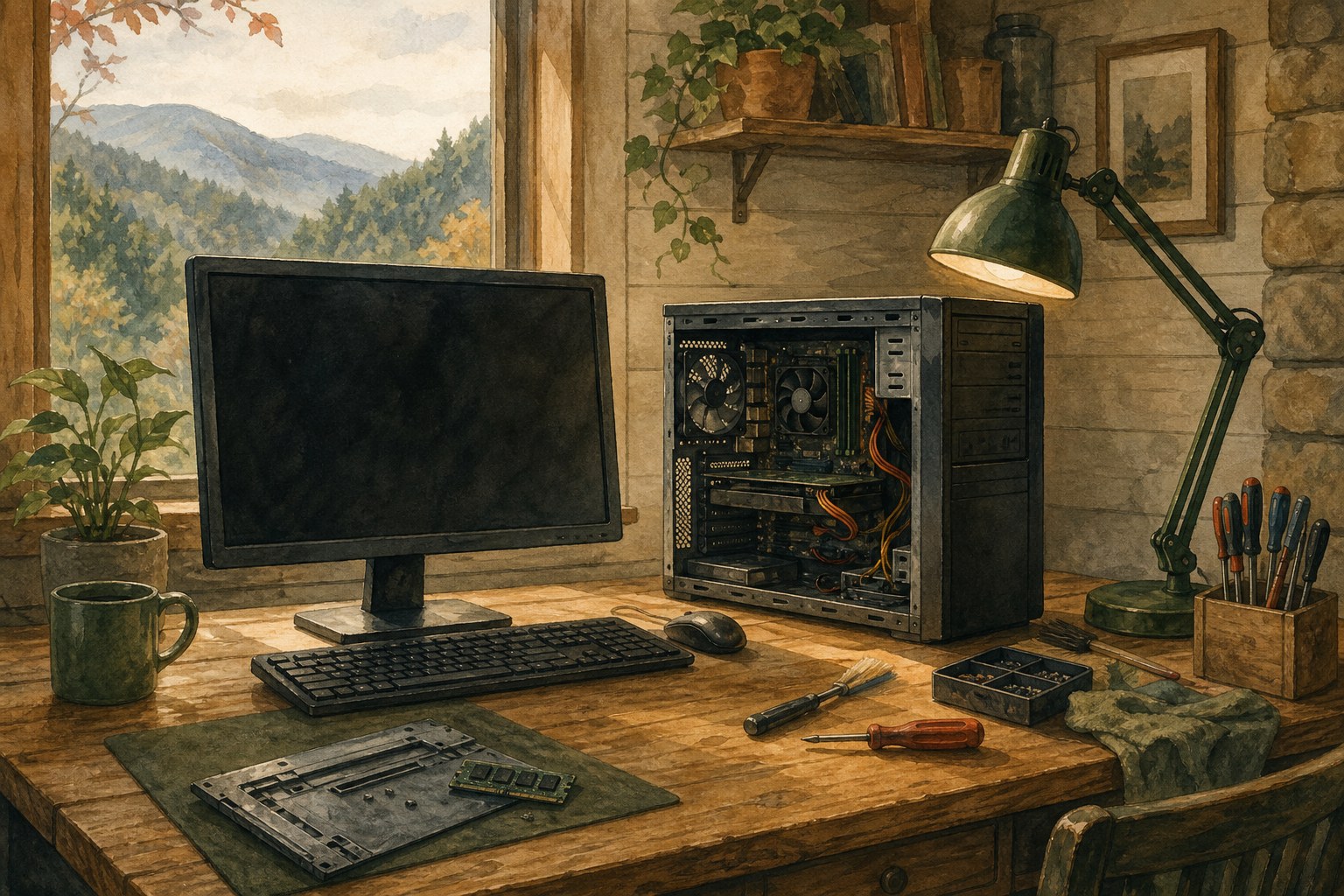
A computer that shuts down without warning is different from a normal restart. You may be working on a document, looking at family photos, or simply checking email, then the screen goes dark and the computer stops. It is frustrating, but the first goal is not to find a quick fix. It is to protect your work, notice the pattern, and avoid pushing a heat, power, or storage problem until it gets worse.
Unexpected shutdowns can come from several places: heat, a loose or failing power connection, an accessory, a Windows or driver issue, or a part inside the computer that needs attention. You do not need to diagnose the exact cause on your own. A few careful checks can make the next step much clearer and keep a manageable problem from becoming a data-loss problem.
1. Separate a shutdown from a restart
A restart usually means Windows closes and then the computer starts again. You may see a spinning message, a manufacturer logo, or the sign-in screen return. A shutdown is more abrupt. The display goes dark, fans stop, lights go out, and you have to press the power button to get going again. That distinction helps because sudden loss of power points you toward a different set of clues than a planned Windows restart.
Write down what happened just before the computer turned off. Was it running a game, video call, update, or large download? Had it been on for a long time? Was the fan loud? Did the room lights flicker, or did a power strip get bumped? If you saw a blue screen or a short message first, take a photo with your phone rather than trying to make it happen again. Microsoft’s guidance for unexpected restarts and stop-code errors also begins with narrowing down recent hardware and Windows changes.
2. Save what you can before trying more fixes
If the computer stays on long enough to reach the desktop, start with the files that cannot be replaced. Save open work, then copy the most important documents, photos, and records to a backup drive or another place you already trust. Do not spend hours moving everything while the computer is unstable. Focus on the items that would hurt most to lose, then stop if the computer starts getting hot, freezing, or shutting down again.
Do not keep opening, moving, or reorganizing files if the computer is making clicking noises, asking to format a drive, or showing missing and unreadable folders. Those are not ordinary shutdown clues. They can mean a storage device needs more careful handling. The data recovery help service explains the safer path when important files are already at risk.

3. Check for heat and blocked airflow
Heat is one of the first things worth checking because it is visible without taking anything apart. A laptop on a blanket, couch, or cushion can have its vents blocked. A desktop pressed into a tight cabinet or surrounded by papers can have the same problem. Move the computer to a hard, open surface and make sure its vents have room around them. If it feels unusually hot, turn it off and let it cool before trying another demanding task.
A loud fan is not automatically a failure. It is often the computer trying to move more heat away from its components. What deserves attention is a fan that stays loud during simple tasks, a computer that slows down after it has been on for a while, or a shutdown that follows heat and noise. Microsoft’s advice for an overheating device is to turn it off, move it to a cooler place, and let it cool before continuing. The same careful pause makes sense for any computer that feels too hot to trust.
Do not download fan-control software to make the noise disappear, and do not spray cleaners inside a running computer. Silencing a fan does not solve the reason it is running hard. The computer overheating guide and loud fan guide can help you recognize the heat patterns that should not be ignored.

4. Rule out the simple power and accessory causes
A loose cable, worn laptop charger, overloaded power strip, or recent outage can look like a computer fault. With the computer powered off, check that the power cable is firmly seated at the wall and at the computer. For a laptop, look for a charger cable that cuts in and out when it moves, a bent connector, or a charger that becomes unusually hot. Do not attempt electrical repairs yourself or use a damaged cable just to see whether the computer starts.
For the next startup, disconnect accessories you do not need: external drives, printers, USB hubs, cameras, and similar devices. Leave the normal keyboard, mouse, monitor, and power connection in place. If the computer stays on after one device is removed, write down which device it was. That does not prove the accessory is bad, but it gives you a useful clue without changing a dozen settings.
A desktop that is connected to an aging or crowded power strip may also need a calmer setup. Do not daisy-chain power strips or overload one outlet with heaters and other high-draw appliances. If room lights flicker, outlets feel loose, or you suspect an electrical issue, stop using that outlet and ask a qualified electrician to assess it.

5. Look for the timing around Windows, software, and updates
If the computer stays on at the desktop, think about what changed before the shutdowns began. A new program, driver update, printer, external drive, or Windows update can matter. Start with the simple details: the date the trouble began, what was connected, whether the computer always shuts down during the same task, and whether it can stay on while doing nothing. Those details are more useful than a long list of error codes.
Windows can sometimes preserve a clue. Search for Event Viewer from the Start menu, then look around the time the computer shut down for a critical or error entry. Take a photo of the entry name and time. Do not delete logs, change the registry, or install random driver tools from a search result. Microsoft recommends checking recently added hardware, available drive space, and Device Manager as part of investigating unexpected Windows failures. Its guide notes that Windows and applications need free drive space to work properly, so a nearly full drive is worth mentioning when you ask for help.
If the computer cannot stay on long enough for ordinary Windows troubleshooting, Windows Recovery Environment and Safe Mode can help narrow down whether a basic startup is stable. Microsoft’s Startup Settings guidance explains how to reach those limited startup options. Use them only if you are comfortable following the screens. They are a way to gather a clue, not a reason to remove programs or reset the computer without knowing what is at risk.
6. Avoid fixes that can hide the real problem
When a computer keeps shutting down, it is tempting to make several changes at once: update every driver, install a cleanup app, reset Windows, replace a power strip, and change advanced settings. That makes it harder to know what caused the improvement or what made the problem worse. Change one simple thing at a time, then use the computer normally long enough to see whether the shutdown returns.
Be cautious with driver-download sites and videos that ask you to paste long commands into an administrator window. Drivers should come from the computer maker or the maker of the exact device. A driver meant for another model can create a second problem, and a random utility cannot reliably diagnose heat or a failing power supply. If Windows itself offers an ordinary update, let it finish only when the computer is stable enough to do so.
A factory reset should not be the first response to a computer that turns off. It can remove programs, change settings, and leave you rebuilding the computer without proving that the shutdown was a Windows problem. If the machine has been getting hot, making unusual sounds, or losing power before Windows is fully loaded, a reset is especially unlikely to answer the important question. Save the clues first, then choose the next step with a clearer picture.
7. Notice whether the shutdown follows a specific task
The task that triggers a shutdown can narrow the field quickly. A computer that turns off only during games, video editing, or a long video call may be working harder than its cooling or power system can handle. A computer that shuts down while it is sitting at the desktop may point toward a different issue, such as unstable power, a scheduled task, an update, or a part that is failing even under light use.
Do not test a suspected heat problem by running the same demanding task again and again. One careful observation is enough. Note how long the computer had been running, whether the fan got louder, whether the case felt warm, and whether the shutdown happened at the same point each time. For a laptop, note whether it behaves differently on battery power and while plugged in. For a desktop, note whether the computer shares its outlet or power strip with other equipment.
This kind of detail is useful because it gives a repair conversation a starting point without asking you to become a technician. It can help separate a one-time Windows interruption from a pattern that needs a closer look at cooling, power, software, or hardware.
8. Know when to stop trying and get help
Pause and ask for help if the computer is very hot, has a burning smell, makes clicking, grinding, or rattling noises, shuts down before you can sign in, or turns off every time you try an ordinary task. The same is true if the shutdown began after a spill, a fall, lightning, or a power surge. Repeatedly forcing it back on can make a fragile drive, cooling problem, or power issue harder to assess.
Be especially careful if the computer contains tax records, business files, schoolwork, or family photos that are not backed up. A reset or reinstall may be appropriate in some situations, but it is a larger decision than a normal restart. Microsoft’s Windows recovery options make clear that the choices have different effects on files, apps, and settings. Read the screen carefully and do not choose the biggest recovery option just because it looks like the fastest answer.
How Mark can help with repeated shutdowns
Mark can help turn a confusing shutdown pattern into a clearer next step. Remote computer help is available nationwide for Windows and software issues that can be assessed while you stay at the computer. During a customer-started session, he can look at recent Windows changes, error information, startup behavior, driver conflicts, and the everyday software issues that can make a computer unstable.
If the clues point to overheating, a failing power supply, battery trouble, or another physical repair need, Mark will explain that plainly rather than treating it like a simple online fix. Visit remote computer repair to see how nationwide online help works. The desktop repair and support service is a good starting point for a tower computer, while laptop repair and support is the right place to start for a notebook that will not stay on.
A short checklist before you call
Have the computer nearby and make a quick note of when it shuts down, what you were doing, whether it felt hot, any sound you heard, and anything that changed recently. Mention whether the screen goes dark while lights stay on, whether all power stops, and whether an external device was connected. Those simple details help Mark start with the right question instead of sending you through random fixes.
Frequently asked questions
A computer may shut down because it is overheating, losing stable power, reacting to a Windows or driver problem, or developing a hardware fault. The pattern matters: note whether it happens after the computer gets hot, under a particular task, when an accessory is connected, or before Windows finishes starting.
Yes. A computer can shut down to protect itself when it cannot control its temperature. If it feels very hot, the fan is unusually loud, or it turns off after it has been running for a while, let it cool down and check that vents are not blocked before doing anything more demanding.
One normal startup can help you see whether the shutdown was a one-time event, but repeated shutdowns need a pause. Stop trying if the computer is hot, smells burnt, makes clicking or grinding sounds, will not stay on long enough to use, or contains important files that you have not backed up.
Mark provides remote computer help nationwide for software and Windows issues that can be checked while you stay at your computer. If the signs point to overheating or a physical repair, he will explain the safest next step rather than treating it like a simple online fix.
Related posts
How to Tell If Your Computer Has a Virus
The visible warning signs that deserve attention, the scams that do not, and when it is time to call for help.

Why a computer gets slow, and what to do before replacing it
A practical first pass for slow, freezing, or aging computers.

Why your Wi-Fi keeps disconnecting, and what to check first
A calm way to narrow down dropped connections before changing every setting in the house.