
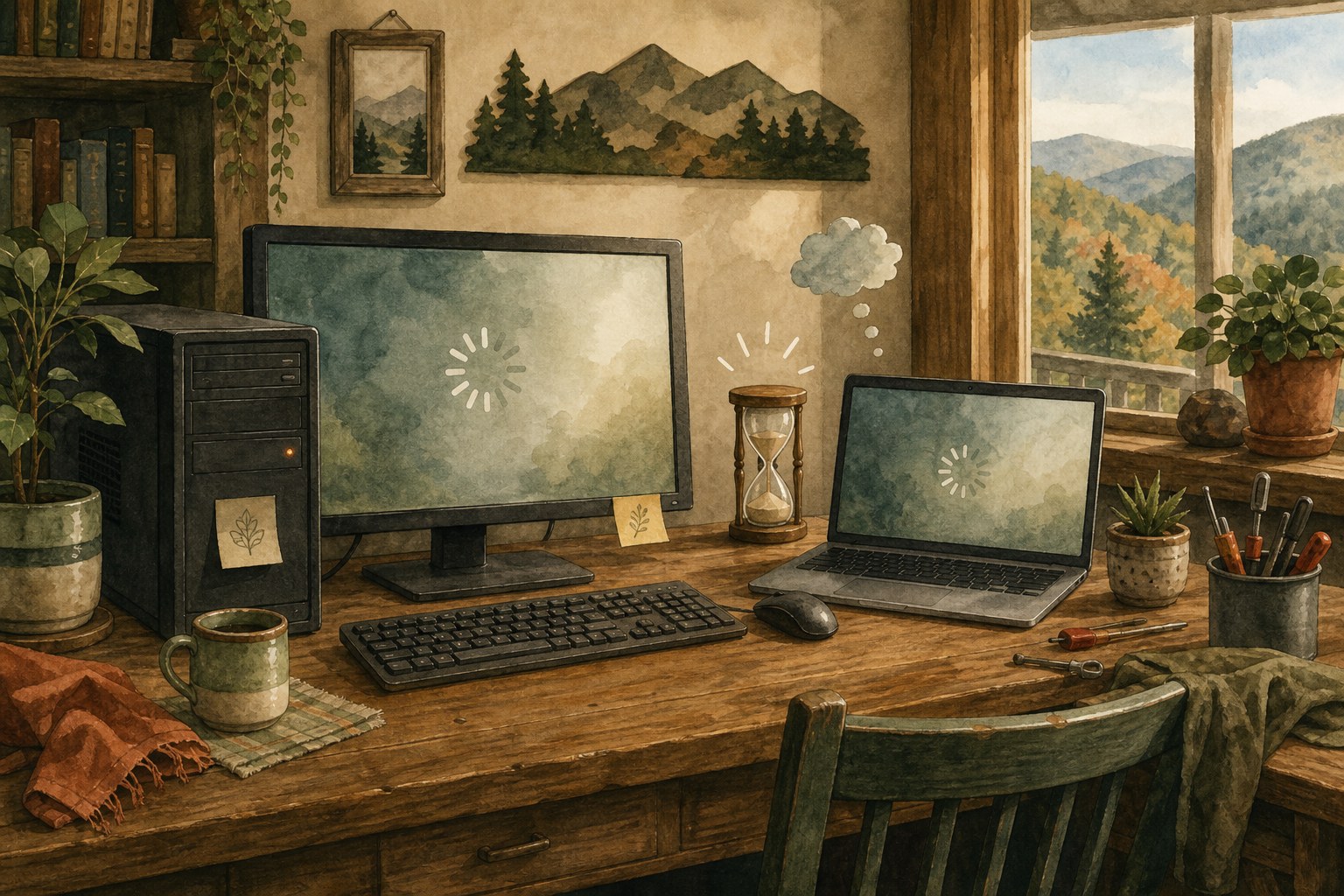
When a computer becomes painfully slow all at once, it is easy to assume the machine is worn out. Sometimes it is. Just as often, the change came from something more specific: one program working too hard, a browser full of extensions and tabs, a storage drive that is nearly full, an update still settling in, or software that does not belong there. The useful question is not “How do I make it faster right now?” It is “What changed, and what can I check without risking my files?”
This guide is for a Windows computer that was working reasonably well and then began taking far too long to start, open programs, switch between windows, or respond to simple clicks. It is not a promise that every slow computer has a quick fix. It is a calm first pass that helps you protect what matters, notice the clues, and decide whether a remote tune-up or a hands-on repair is the sensible next step.
First, notice what “slow” means on your computer
A slow startup points in a different direction than a browser that only drags when several tabs are open. A computer that becomes sluggish after fifteen minutes may be running hot. One that freezes while saving files deserves more caution than one that simply takes a moment to open an app. Before changing settings, make a short note: when did the slowdown begin, what were you doing at the time, and does it happen in every program or only one?
Also look for anything that changed around the same time. A new printer, a game, a browser add-on, a security program, an update, or an email attachment can all be relevant. That does not mean the newest thing is automatically the cause. It gives you a place to start without uninstalling half the computer on a hunch.
Protect your work before trying bigger fixes
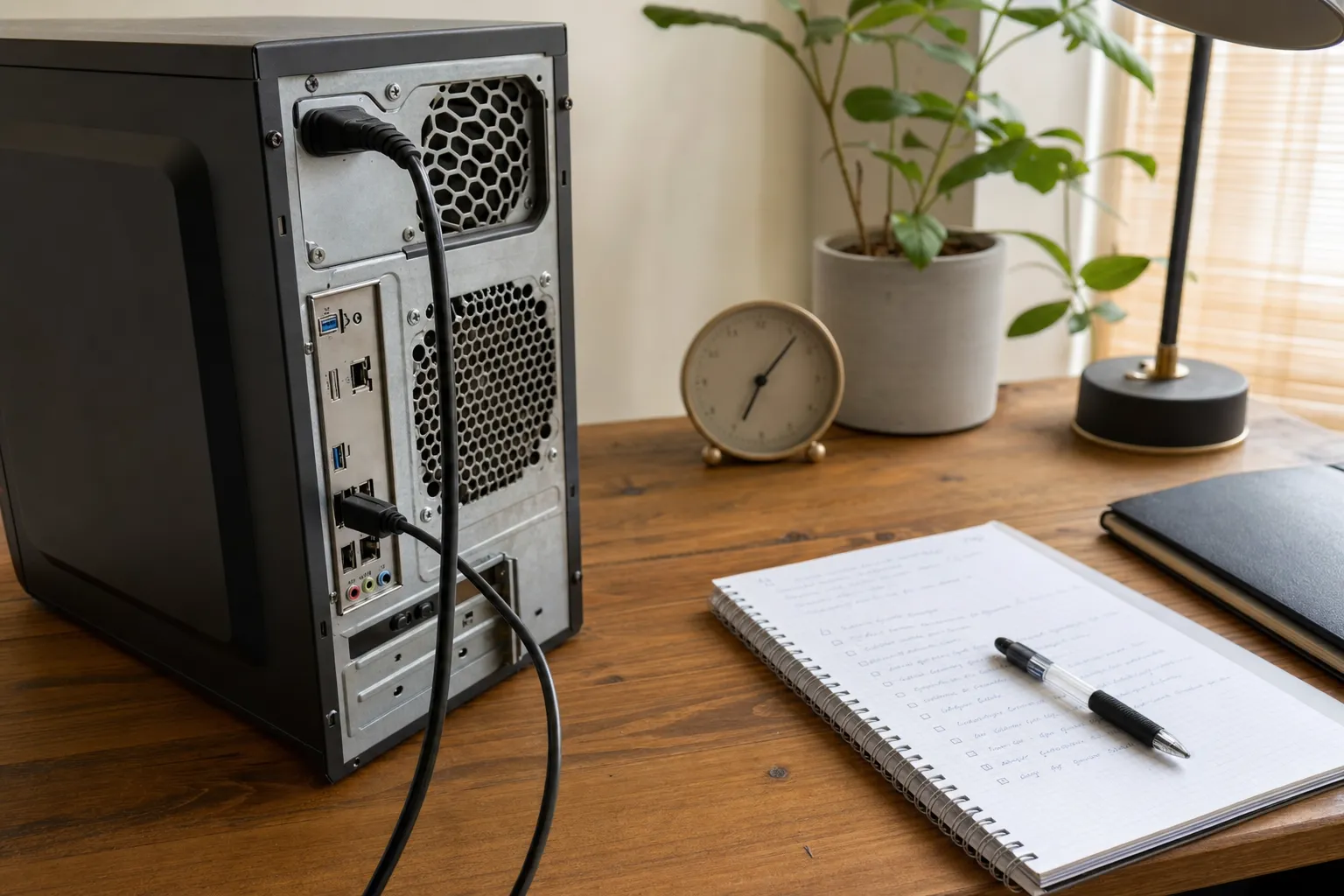
If the computer still opens your important files, make sure you have a current copy of the things you cannot replace: family photos, tax documents, school work, work files, and passwords or account recovery information stored in a safe place. Microsoft also recommends backing up important files before making a major change or moving to a different computer. A backup does not solve a slowdown, but it gives you room to make decisions without panicking.
Do not begin by resetting Windows, deleting folders you do not recognise, or installing several “PC cleaner” programs. Those choices can remove useful clues, create a second problem, or make it harder to recover files later. If files are missing, renamed, asking to be formatted, or refusing to open, stop there and use the data recovery help page instead of pushing the computer through more changes.
1. Restart once, then see what comes back
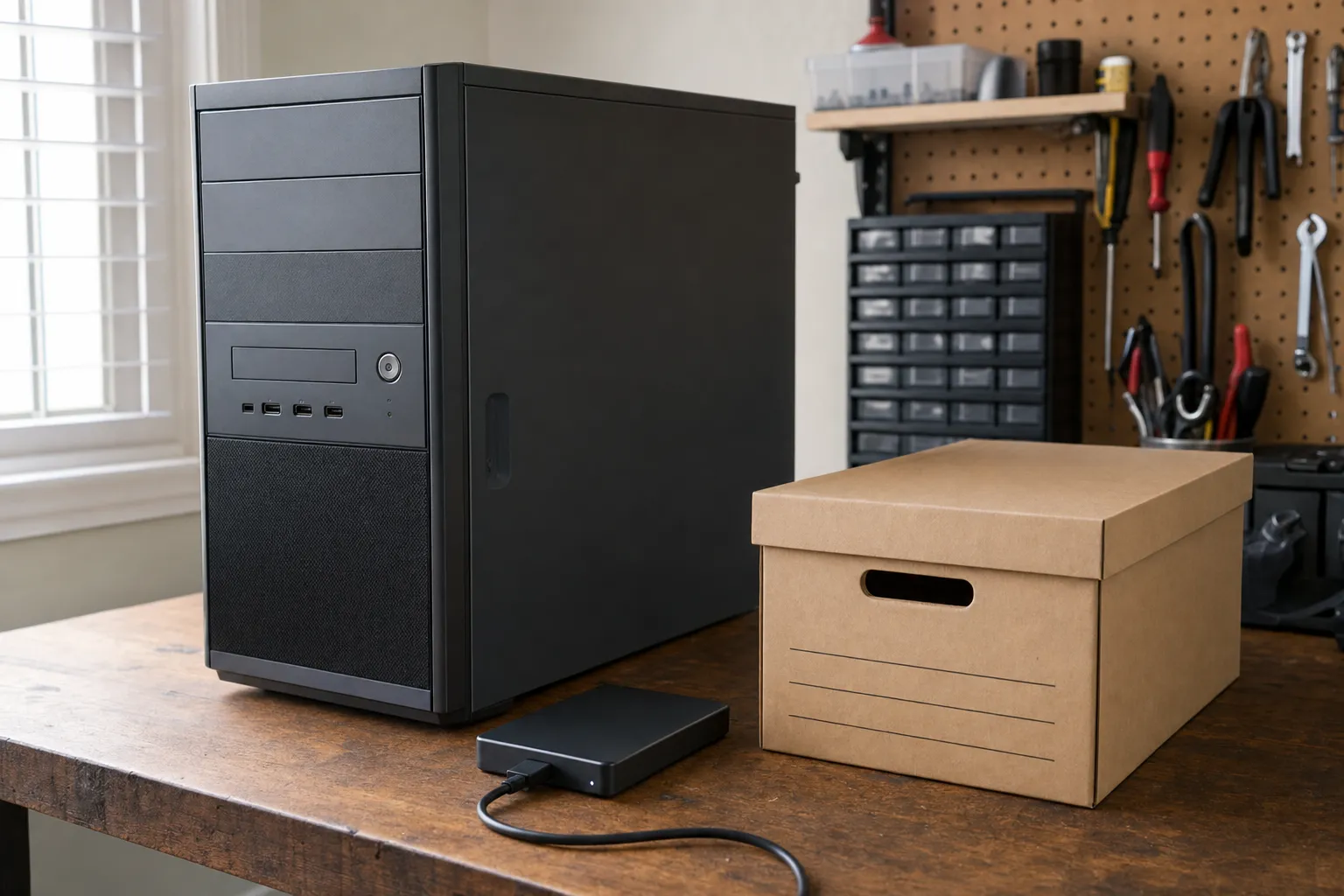
A normal restart is a useful test. It can clear a program that has become stuck and gives Windows a fresh start. Save your work, choose Restart from the Power menu, and let the computer finish rather than switching it off in the middle of an update.
After it returns, try the same simple task that felt slow before. If the machine is back to normal and stays that way, the issue may have been temporary. If it slows down again as soon as you open the same program, connect the same device, or start using the internet, write that down. Repeated restarts that only help for a few minutes are a clue, not a solution.
2. Check whether one program is doing all the work
Press Ctrl + Shift + Esc to open Task Manager. On the Processes list, look for an app using a surprisingly high amount of CPU, memory, disk, or network activity while the computer is sitting still. You do not need to understand every process name. You are looking for an obvious pattern: one program at the top that is using far more than everything else.
If you recognise that program, close it normally and see whether the computer settles down. A browser is a common example: dozens of tabs, a video call, or a poorly behaved extension can make a reasonable computer feel frozen. If you do not recognise the name, do not start ending tasks at random. Take a photo or write it down. It may be a normal Windows service, and stopping the wrong thing can make the diagnosis less clear.
3. Free up storage space, but do it deliberately
Windows needs room for updates, temporary files, and everyday work. Low disk space can make a computer feel sluggish, especially when it is trying to update or open large files. Microsoft’s current performance guidance recommends using Storage settings, temporary-file cleanup, and Storage Sense to reclaim space.
Open Settings > System > Storage and look at the main drive. Empty Downloads, duplicate photos, old installers, and apps you no longer use are often safer places to reclaim space than unfamiliar Windows folders. If you remove an app, make sure you know what it is and that you have saved anything it owns. Avoid “registry cleaners” and miracle speed-up tools. A little more free space is helpful; a random cleanup program is not a diagnosis.
4. Look at startup apps and recent updates
Programs that launch every time Windows starts can stretch startup time and use resources before you have opened anything. In Task Manager, choose Startup apps and disable only items you recognise and do not need immediately. Things such as chat apps, game launchers, or update helpers can usually wait. Security software, touchpad software, and anything tied to hardware are better left alone unless you know exactly what it does.
Check Settings > Windows Update as well. An update may be downloading, installing, or asking for a restart. Keep Windows updated, but do not assume every slowdown needs a driver update from a third-party site. If the trouble began immediately after a specific update, note the date and the symptoms before changing anything. That gives a repair person a much better starting point than “it got slow sometime this week.”
5. Rule out unwanted software and browser trouble
Slow performance does not automatically mean a virus. It does become more concerning when it arrives with pop-ups, browser redirects, unfamiliar toolbars, new security warnings, or programs you never chose to install. Microsoft notes that malware can use processor and disk resources, and recommends running a scan through Windows Security when suspicious symptoms appear.
Open Windows Security > Virus & threat protection and run a quick scan. If it finds something you do not understand, make a note of the result before approving major changes. If a browser keeps opening strange pages or a full-screen message tells you to call a number immediately, treat that as a scam warning. The computer virus warning-sign guide explains the first steps to take without giving a stranger access to the computer.
6. Pay attention to heat, sounds, and crashes
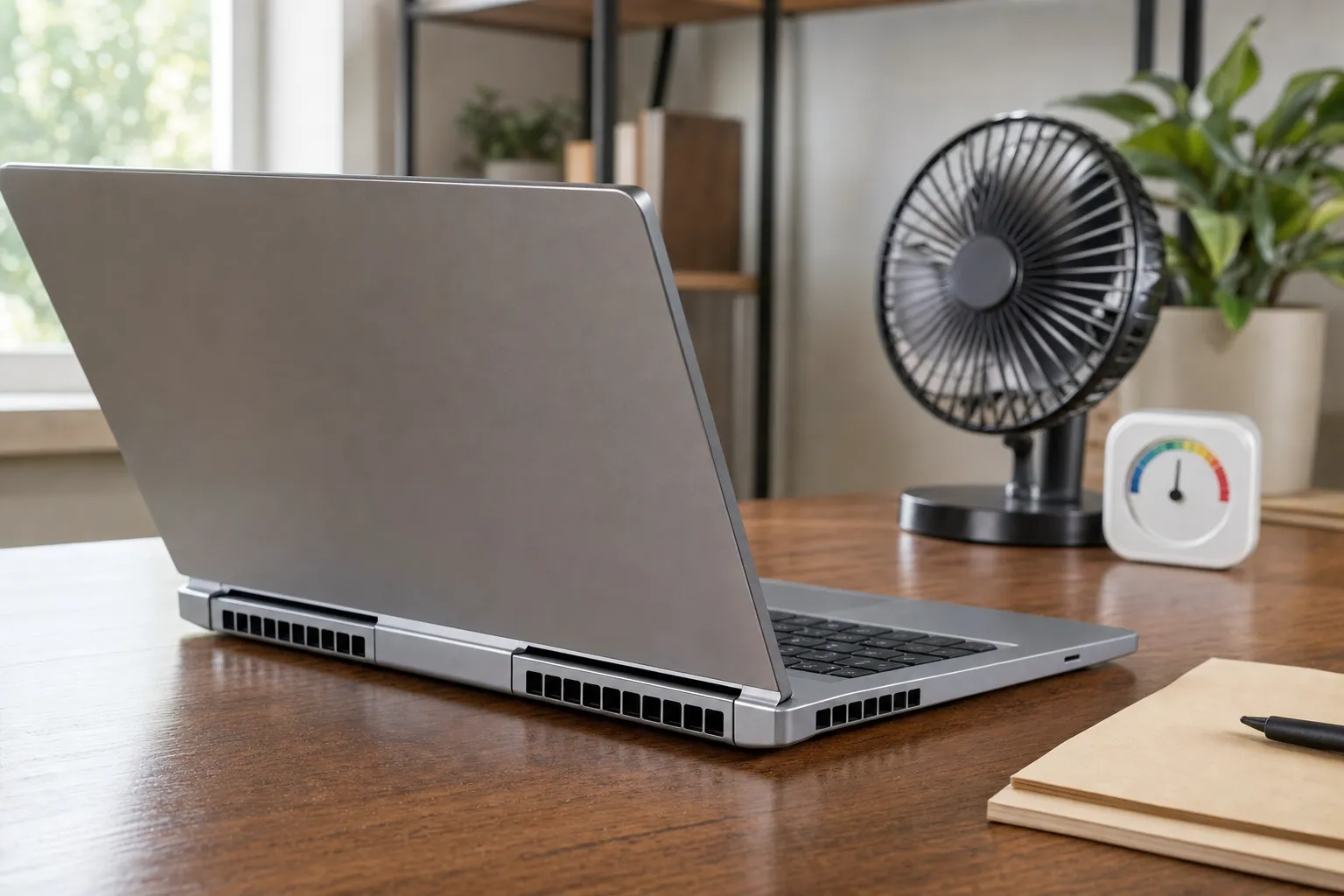
A computer that slows down after it has been running for a while, has fans that suddenly sound much louder, or shuts itself down may be dealing with heat. Make sure laptop vents are not blocked by a blanket or cushion, and give a desktop some open space around the case. Save your work and let the machine cool before demanding more from it. The computer overheating guide covers the warning signs that should not be ignored.
Clicking, grinding, repeated blue screens, frequent crashes, or files that will not open can point to a deeper hardware or storage issue. Do not keep forcing a troubled computer through a long update, a reset, or repeated restarts. Those are moments to protect the files first and ask for a clear diagnosis.
When a slow computer needs a real diagnosis
Some slowdowns are a straightforward remote fix. Startup clutter, a full drive, a browser issue, an unwanted app, or a setting that changed after an update can often be narrowed down without taking the computer apart. Other symptoms point toward limited memory, an aging drive, an overheating component, or a physical repair that needs a different approach.
Mark can help separate those paths. Start with the slow computer help service if the computer is taking too long to start, freezing, or behaving as though it has lost its get-up-and-go. For a laptop with a specific hardware concern, the laptop repair and support page explains what can be checked remotely and when hands-on work makes more sense. The goal is not to sell a replacement before it is needed. It is to tell you what is happening and what is worth doing next.
A simple checklist before you call
Have the computer turned on, keep a note of any error message, and be ready to describe when the slowdown began. Mention whether it affects every program, whether the computer runs hot, whether you saw a pop-up or redirect, and what you have already tried. Those details make a support session shorter and more useful. If the issue started while you were dealing with Wi-Fi or a printer connection, the Wi-Fi troubleshooting guide and printer checklist can help you separate a device problem from a computer-wide slowdown.
Frequently asked questions
A sudden slowdown can come from a busy program, a recent update, low storage, a browser problem, unwanted software, overheating, or a drive beginning to fail. The timing and the symptoms matter more than a guess. Start by noting what changed, then work through a few safe checks before deleting anything.
A restart can clear a temporary problem and is a sensible first step. If the computer becomes slow again soon afterward, freezes, shows errors, or makes unusual noises, it needs a closer look instead of repeated restarts.
Yes. Unwanted software can use processing power, change browser settings, or interfere with normal programs. Slow speed alone does not prove there is a virus, but unexpected pop-ups, redirects, new programs, or suspicious security messages are good reasons to run a scan and get help if the symptoms continue.
Stop and ask for help if important files will not open, the computer is repeatedly crashing, you see a payment demand or a suspicious remote-access prompt, the machine runs very hot, or you hear clicking or grinding from the drive. Those signs can make a rushed cleanup or reset more costly.
Related posts
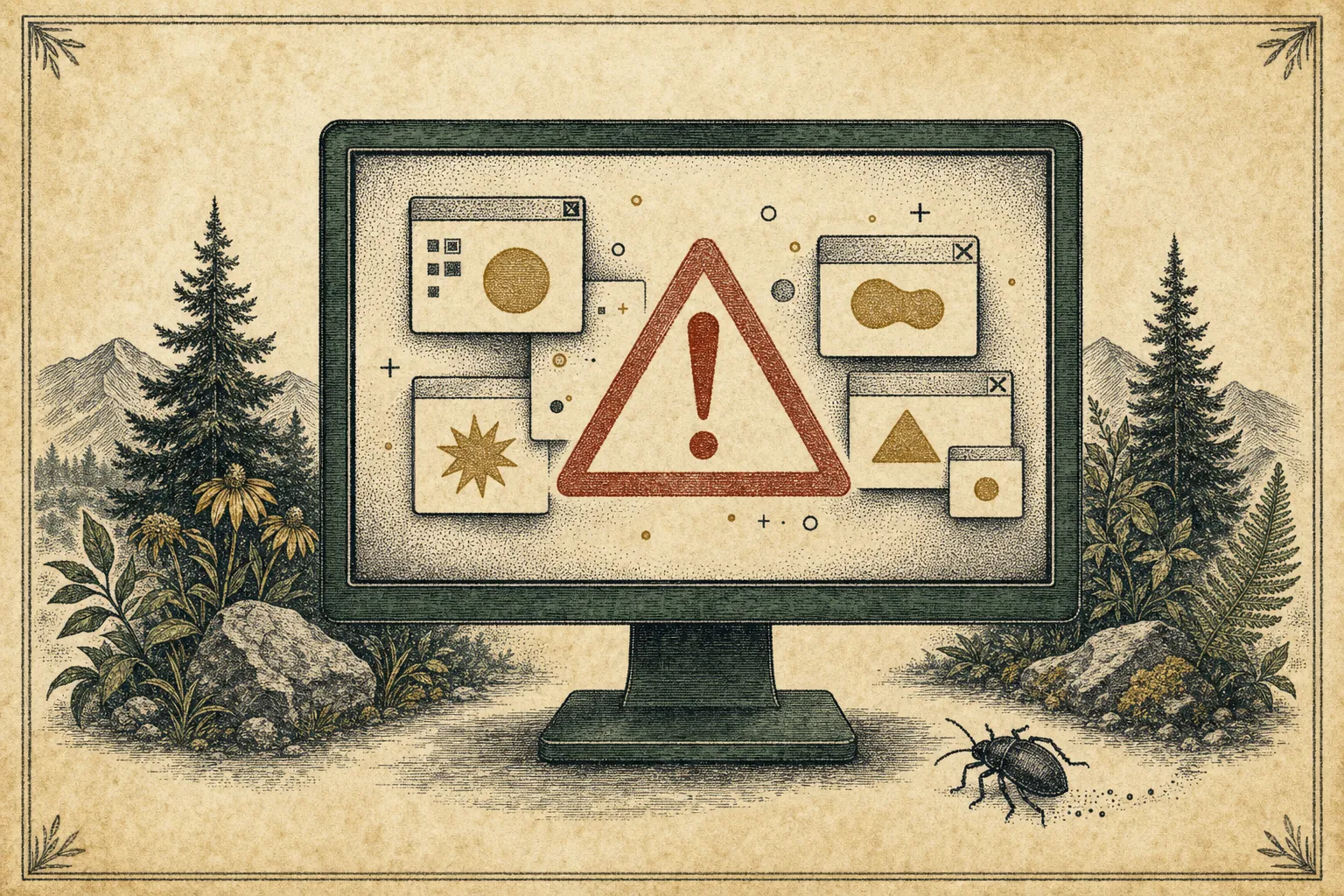
How to Tell If Your Computer Has a Virus
The visible warning signs that deserve attention, the scams that do not, and when it is time to call for help.
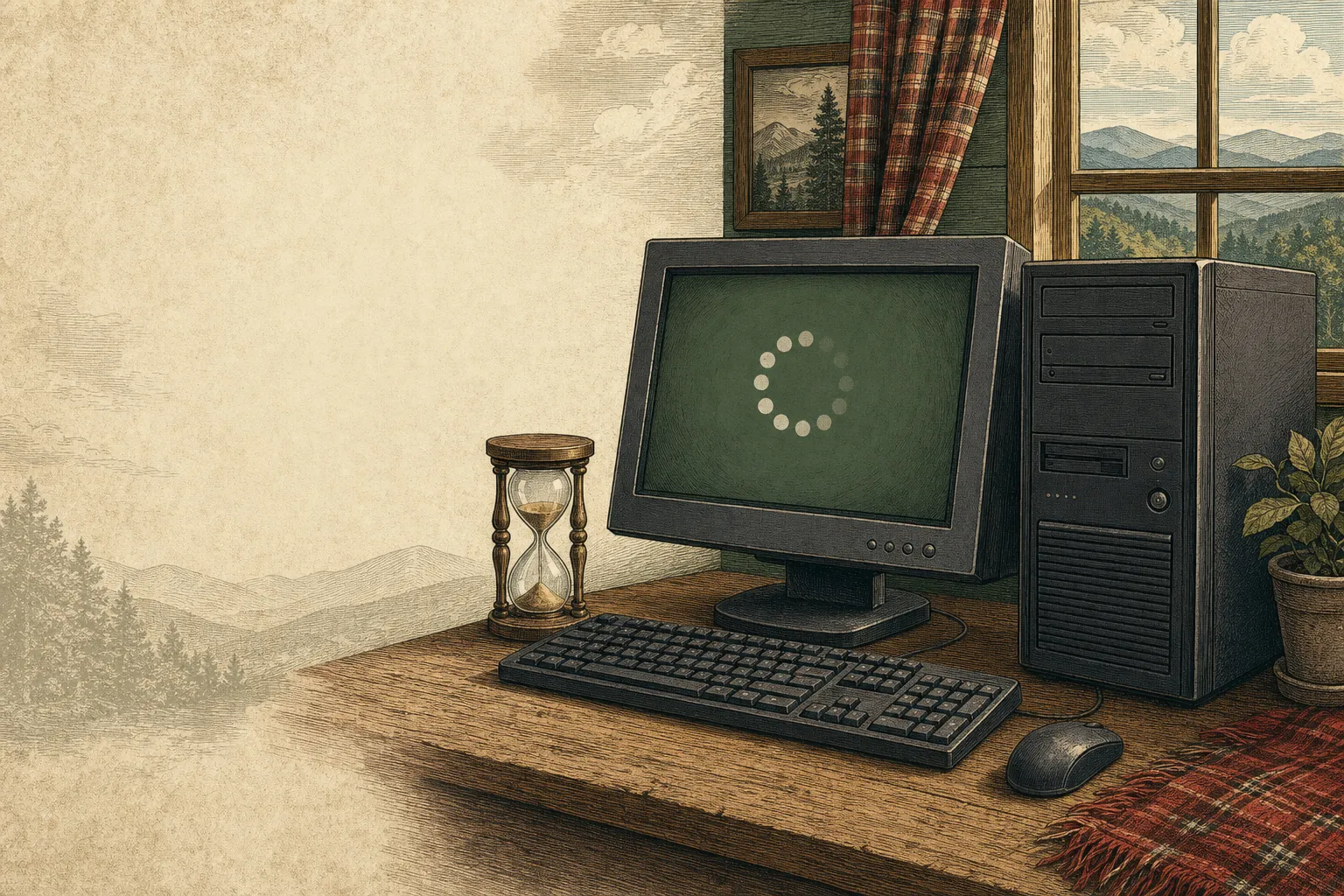
Why a computer gets slow, and what to do before replacing it
A practical first pass for slow, freezing, or aging computers.
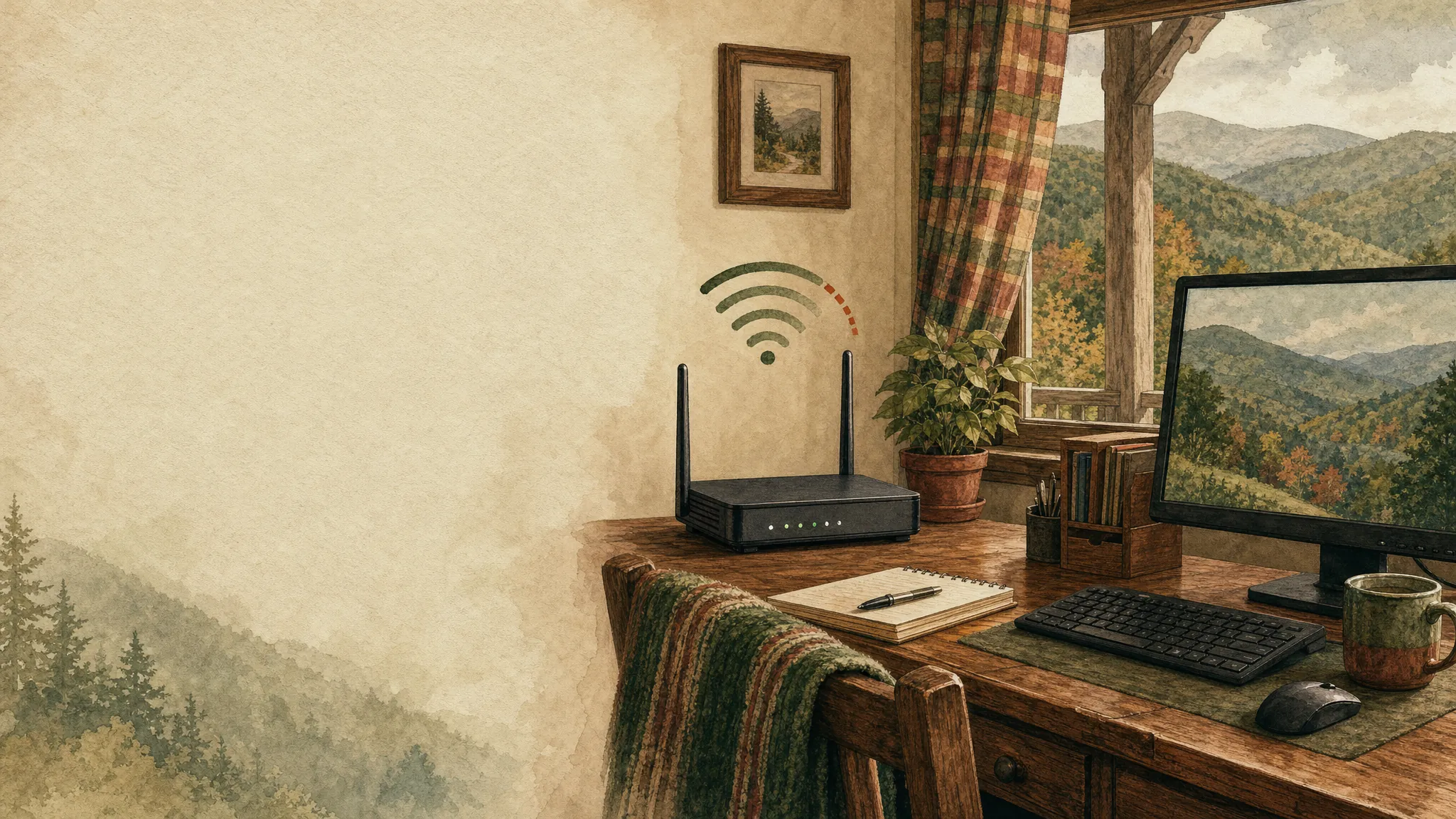
Why your Wi-Fi keeps disconnecting, and what to check first
A calm way to narrow down dropped connections before changing every setting in the house.