

A computer that restarts once after an update is usually not a crisis. A computer that restarts again and again, loses work, freezes before the sign-in screen, or shuts down while you are doing something ordinary deserves a calmer look. The safest first move is not to download a list of repair tools. It is to notice the pattern, protect anything important, and avoid turning a manageable problem into a harder one.
Restarting can come from software, a Windows update, a driver, heat, power, or a part that is beginning to fail. You do not need to identify the exact cause before asking for help. A few useful observations can make the next step much clearer.
1. Stop the restart loop from eating your work
If the computer reaches the desktop long enough for you to save a document, do that first. Close anything you do not need and write down the last program you had open. Avoid beginning a major update, resetting Windows, or installing several cleanup programs while the computer is unstable. Those steps can hide the original clue or interrupt something important.
If the restart happens while you are using email, banking, work files, or family photos, do not assume the files are gone. A restart is different from data loss. Still, it is wise to pause before repeatedly opening the same programs or moving files around. If a drive is clicking, disappearing, asking to be formatted, or files have become unreadable, use the data recovery help service before trying more repairs.
A computer that is repeatedly restarting before it reaches the desktop should not be left running unattended for hours. Let it attempt a normal startup once, then stop if it returns to the same loop. Repeated power-button interruptions can be rough on an update or an already unstable drive.
2. Write down when the restart happens
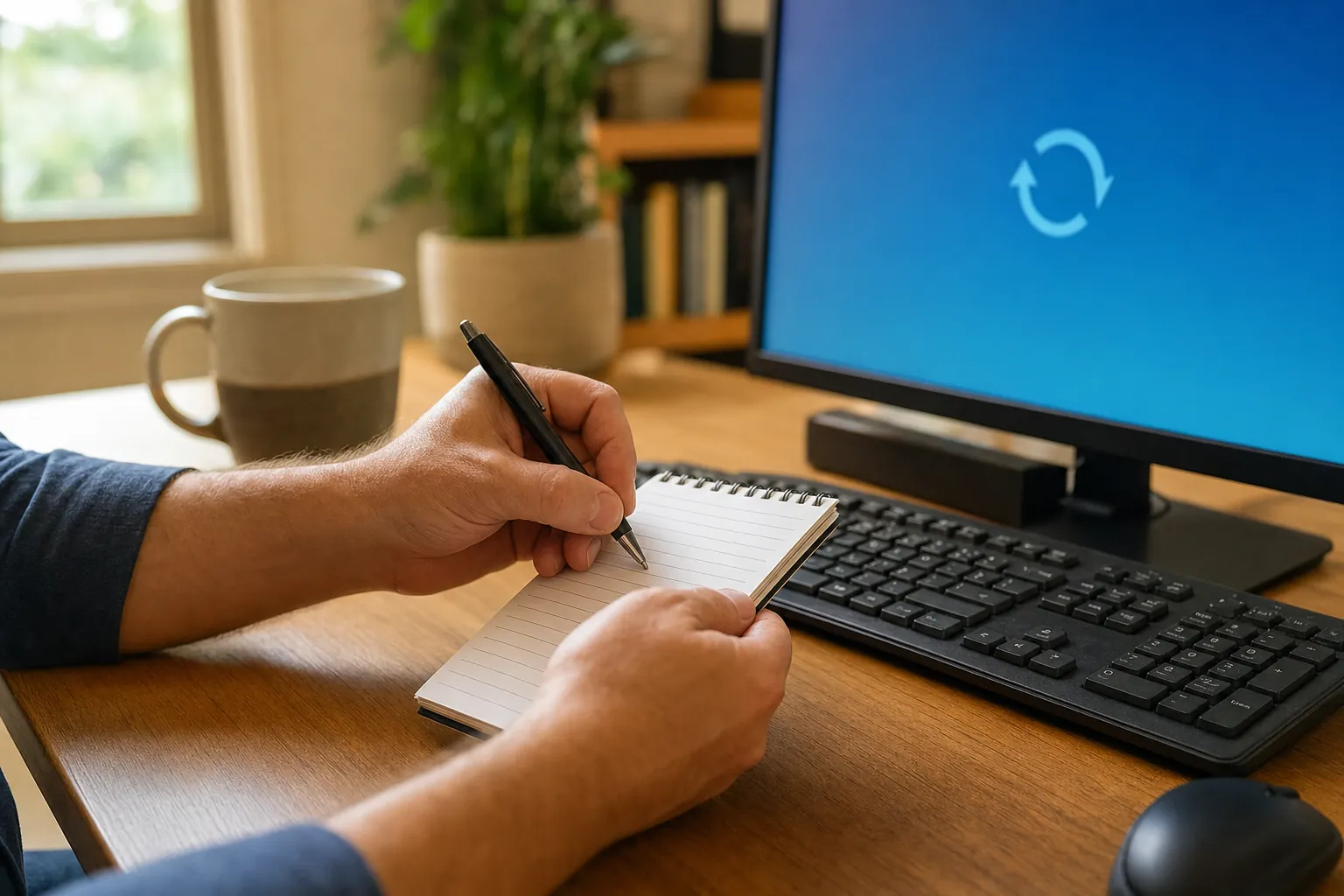
The timing often tells you more than the word "restart." Does it happen immediately after pressing the power button, only after you sign in, or after the computer has been running for twenty minutes? Does it happen during a video call, game, large download, or while the computer is sitting still? Does it happen only when a printer, external drive, or other device is connected?
Also note what you saw just before it restarted. A blue screen, a quick error message, a very loud fan, a hot case, a power flicker, or a program that always crashes first are all useful clues. A photo of the screen taken with your phone can be more helpful than trying to remember a message later. If the computer restarts too quickly to read it, do not chase it by rebooting over and over. The pattern is still useful.
3. Check for heat before digging into settings
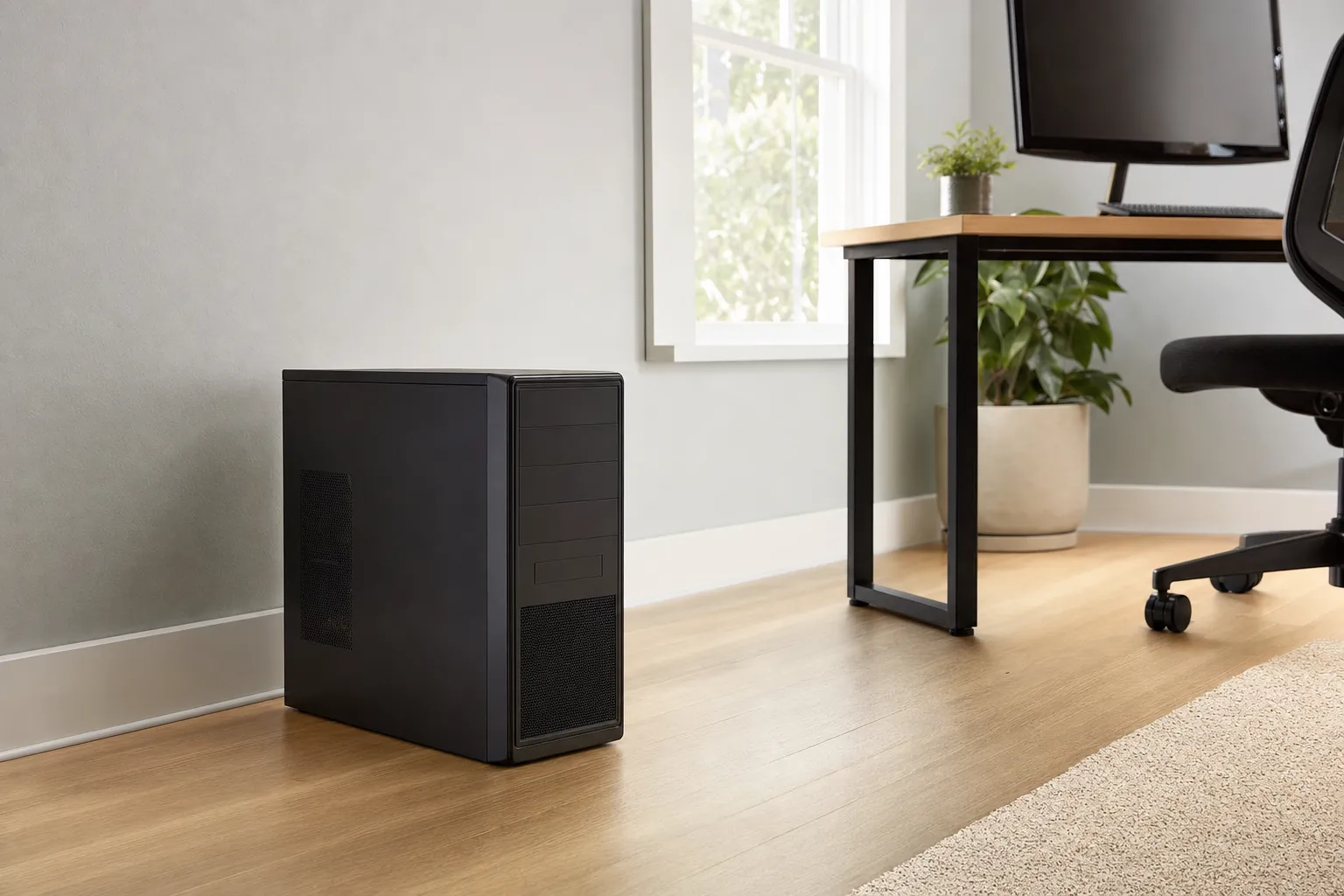
Heat is one of the simpler things to rule out. Put a laptop on a hard, flat surface rather than a blanket, couch, or cushion. Make sure a desktop has open space around its vents and is not tightly boxed into a cabinet. If the computer feels unusually hot, the fan is loud all the time, or the restarts happen after it has been working for a while, save what you can and let it cool completely before trying again.
Do not cover vents, spray anything into the computer, or download fan-control software because a video promised an instant fix. A loud fan is usually the computer trying to manage heat, not a problem to silence. The computer overheating guide explains the warning signs that should not be ignored, while the loud fan guide helps separate normal airflow from a mechanical sound.
4. Rule out the simple outside causes
A loose power cable, worn power strip, failing battery charger, or recent power outage can look like a computer problem. Check that the power cord is firmly seated at both ends and that a desktop is not sharing an overloaded or unreliable outlet. If you use a laptop, look for a damaged charger cable or a connection that cuts in and out when it moves. Do not open the case or attempt electrical repairs yourself.
Disconnect nonessential accessories before the next startup: external drives, printers, USB hubs, cameras, and other devices you do not need to sign in. Leave the keyboard, mouse, monitor, and normal power connection in place. If the computer suddenly starts normally after an accessory is removed, write down which device it was. That does not prove the accessory is broken, but it gives the repair conversation a useful starting point.
It is also worth thinking about recent changes. A new update, unfamiliar download, driver update, new printer, power interruption, or a computer that was moved can all be relevant. A problem that began after an unexpected download or comes with pop-ups and browser redirects should be treated carefully. The computer virus warning-sign guide covers the safest first steps when security may be part of the problem.
5. Let Windows show you a clue, not a maze of settings
If the computer stays on long enough to sign in, Windows can sometimes tell you what happened. Start with the plain details: the time of the restart, whether Windows said it was updating, and whether the same program crashes first. For a recent blue-screen or sudden restart, you can also open Event Viewer by searching for it from the Start menu. Look for an error or critical entry around the time of the restart, take a photo of its name, and stop there if the details are confusing.
Do not delete logs, change the registry, or paste long command lists into an administrator window just because a search result says to. Event Viewer is useful because it preserves clues. It is not an invitation to change every setting you can find. The same applies to drivers: if a particular device or update appears connected to the timing, use the computer maker's official support guidance or ask for help before installing a random driver from a download site.
Microsoft's Startup Settings instructions explain how to start Windows with a limited set of drivers when ordinary startup is not working. Use that option only if you can follow the screens comfortably. Safe Mode is a way to narrow down whether a basic Windows startup can hold steady, not a promise that you should remove software or make major changes on your own.
6. If it will not reach the desktop, use the recovery options carefully
When a computer cannot finish starting, Windows may show Automatic Repair or recovery options after failed attempts. Start with the least disruptive choice. Microsoft's recovery options guide explains the difference between repair and reset choices. Read each screen before selecting anything, and do not choose a reset or reinstall simply because it is the biggest button.
Startup Repair can be a reasonable option when Windows itself cannot start, but a reset or reinstall is a bigger decision because it may remove programs, settings, or files. If you are worried about tax records, photos, business files, schoolwork, or anything else that only exists on that computer, pause before using a major recovery option. The slow computer help service is a better next step than guessing when the problem involves crashes, startup trouble, or a system that no longer feels dependable.
For a laptop or desktop that starts briefly, then restarts before Windows is usable, it can also help to tell Mark whether you can see the manufacturer logo, whether the screen changes color, and whether any beeps, clicks, or lights appear. Those small details can help separate a Windows problem from a hardware or power issue.
7. Know when to stop trying and get help
Stop and ask for help when the computer is very hot, has a burning smell, makes clicking or grinding sounds, repeatedly restarts before the sign-in screen, shows a blue screen every time, or shuts down while you are doing simple tasks. A restart after a power outage may settle after one normal startup. A computer that cannot stay on long enough to use is a different situation.
It is also time to pause if you suspect malware, an unknown person had remote access, or the computer restarted while you were entering sensitive information. Change important passwords from a different trusted device if you believe you entered them into a suspicious screen, starting with your email account. Then call a business you chose yourself. The remote help safety page explains how to start that conversation on your terms.

How Mark can help with repeated restarts
Mark can help make sense of the clues without sending you through a long list of risky fixes. During a customer-started remote session, he can look at Windows messages, recent changes, startup behavior, software conflicts, and the everyday issues that can cause a computer to become unstable. If the pattern points to heat, a failing part, or another hands-on repair need, he will explain that clearly rather than promising an online solution for a physical problem.
For a desktop, start with the desktop repair and support service. For a laptop, use laptop repair and support. Before you call, have the computer nearby and note when the restarting began, what changed beforehand, and any message, sound, or heat you noticed. That saves time and helps get to the right next step faster.
Frequently asked questions
A computer can restart because of a Windows update, a software or driver problem, overheating, unstable power, failing hardware, or a serious system error. The pattern matters most: note whether it happens before you sign in, only during one task, after the computer gets warm, or after a recent change.
One normal restart is reasonable, but do not keep forcing a computer through repeated restart loops. If it will not reach the desktop, becomes hot, makes unusual sounds, or keeps restarting during ordinary use, stop trying random fixes and write down what you see.
Yes. A computer may slow down, freeze, or shut down to protect itself when it cannot control its temperature. Clear blocked vents, move the computer to a hard open surface, and let it cool before doing more demanding work.
Mark can help identify whether the restart pattern points to Windows, software, a driver, overheating, or a physical repair need. If a remote check is appropriate, you start the session and can watch the work. If the problem needs hands-on service, Mark will explain that plainly.
Related posts
How to Tell If Your Computer Has a Virus
The visible warning signs that deserve attention, the scams that do not, and when it is time to call for help.

Why a computer gets slow, and what to do before replacing it
A practical first pass for slow, freezing, or aging computers.

Why your Wi-Fi keeps disconnecting, and what to check first
A calm way to narrow down dropped connections before changing every setting in the house.