
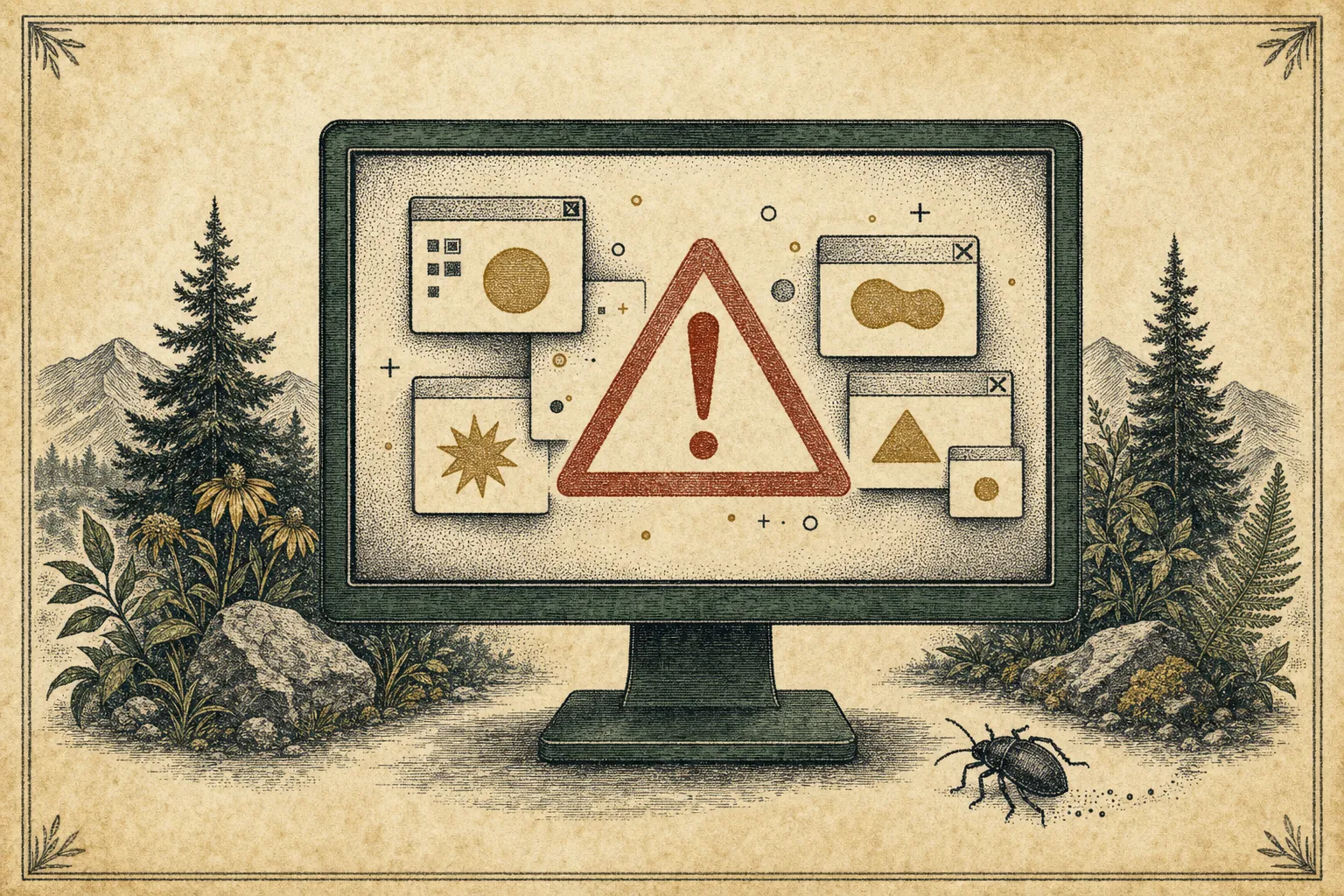
A computer virus is not always dramatic. Sometimes the first clue is a browser that opens strange pages, a computer that suddenly crawls, or a warning that tries to frighten you into calling a number. Other times, there is no infection at all, just a stuck update, a full hard drive, or an annoying website notification. The goal is not to panic or attempt a repair from a random video. It is to notice the signs, avoid the common traps, and know when a professional check makes sense.
A warning is not proof by itself
Slow performance, a loud fan, pop-ups, and crashes can be frustrating, but none of them proves a virus on its own. A nearly full drive can slow a computer. An old browser extension can cause unwanted ads. A program that starts with Windows can make the machine feel busy before you even open anything. Think of one symptom as a reason to look closer, not a reason to hand control of your computer to the first person who offers help.
What matters more is a pattern: several new problems appearing together, or a clear change after an unfamiliar download, attachment, or website. Unexpected software, a changed browser home page, repeated redirects, and security settings that will not stay on are all stronger reasons to investigate. If you are unsure, take a picture of the message and write down what happened just before it appeared. That is far more useful than clicking through warning after warning.
Signs that deserve a closer look
Start with the things you can actually see. Your browser may show advertisements on pages that never used to have them. Search results might lead somewhere you did not choose. A new toolbar, extension, or unfamiliar program may appear. You might get password-reset emails you did not request, or friends may receive messages that look as though they came from you. These are all reasons to slow down and check accounts as well as the computer.
Another warning sign is a computer that suddenly behaves differently when you are doing ordinary tasks. Applications may crash more often, files may open with strange names, or the system may constantly work in the background even when you are not using it. A sudden slowdown can also have ordinary causes, so it is helpful to compare it with other signs. The practical question is not “Can this one symptom happen with a virus?” It is “What changed, and do I recognise it?”
Microsoft explains that malware can include programs designed to steal information, misuse computer resources, or perform other unwanted actions. Its built-in Windows Security tools watch files and processes in the background, but a warning or unusual symptom still deserves a measured response. Microsoft’s overview of scams and malware is a useful reminder that “virus” is often used as a catch-all name for several different kinds of unwanted software.
Make a short list before changing anything
A few notes can save a great deal of time. Write down when the problem began, whether it happened after a new program or email attachment, and whether it affects every browser or only one. Note the exact wording of any warning and the name of any program you do not recognise. If you can do so safely, take a photo of the screen with your phone instead of clicking the message. This creates a useful record without giving the message more attention than it deserves.
Also think about what information was on the computer when the trouble began. Were you signed into email, banking, shopping, or work accounts? Did you open a file that someone sent unexpectedly? Did anyone else use the computer recently? There is no need to become your own investigator, but these details help separate a simple browser problem from a situation where account security should be checked too. They also give Mark a clearer starting point if you decide to call.
Know the difference between a virus warning and a scam
A full-screen browser message that says your computer is locked, shows a phone number, plays an alarm, or demands immediate action is usually trying to scare you. It may look official, but a website cannot diagnose your computer and legitimately demand that you call a number displayed in a pop-up. Do not call, do not install a “fix,” and do not give anyone a credit card number or a password because that message told you to.
Instead, close the browser tab or window. If it will not close, use the normal Windows controls to close the browser; restarting the computer is fine if you cannot get back to the desktop. When you reopen the browser, do not restore every old tab immediately. If the message keeps returning, write down the browser name and the words you see, then get help from a business you contacted yourself. A real support session starts because you chose to call—not because an unexpected pop-up or caller pressured you.
For more simple safety rules before allowing anyone remote access, read how to tell a real remote-support session from a scam. It is especially important if the message appeared while you were already upset or in a hurry.
If you are concerned, pause and get a professional opinion
Stop entering passwords, card details, or other sensitive information until you know what you are looking at. If you just entered a password into an unfamiliar site or gave someone remote access, use a different trusted device to contact the affected account provider. For the computer itself, do not install a stack of cleanup programs, follow a stranger’s instructions, or approve a major removal you do not understand. Those actions can turn a clear diagnosis into a muddle.
If you saw files being renamed, a payment demand, a program you do not recognise, or a warning that keeps returning, make a note of it and call for help. Microsoft distinguishes harmful malware from potentially unwanted software that may show excessive ads, add unexpected programs, or quietly use computer resources. Microsoft’s explanation of unwanted software is useful context, but it cannot identify what is happening on your individual computer from a distance.
Do not make the recovery harder
When a computer feels unsafe, it is tempting to delete everything that looks unfamiliar. That can remove evidence, delete a needed file, or leave the underlying problem untouched. It can also create an avoidable data-loss problem. If the computer contains family photos, tax records, school work, or business documents, copy nothing to a shared drive or another computer until you know what you are dealing with. If files are missing, unreadable, or asking to be formatted, stop and use the data recovery help page for the right next step.
The same care applies to passwords and financial information. If you entered card details, contacted the number in a pop-up, or gave an unknown person remote access, contact the bank or card provider through the number on the card. Change the most important passwords from a clean device and turn on two-step verification where it is available. The problem is not a reason for embarrassment; it is a reason to act early and document what happened.
When to get help right away
Some situations are worth treating as urgent. Stop using the computer and ask for help if files are suddenly renamed or will not open, a message demands payment to restore access, an unknown person is currently connected to the machine, or you have entered account or payment details into a warning screen. If the computer belongs to a small business, disconnecting it from the network and documenting what you see can protect other devices and make the next conversation much clearer.
It is also a good idea to ask for help when a security scan finds something you do not understand, the same warning comes back after you remove it, or browser redirects and pop-ups keep returning. A calm diagnosis is better than installing several competing security programs or wiping a computer before important information has been protected. The sooner the symptoms, messages, and recent changes are written down, the easier it is to decide whether the issue is a browser setting, unwanted software, or a deeper infection.
How Mark can help
If you see several warning signs, Mark can help you sort out what is happening without adding to the confusion. A remote session begins only after you contact Mark directly, and you can stay at the computer to see what is being checked. He can look for unwanted software, browser changes, suspicious extensions, security settings, and the everyday issues that can look like an infection. If the situation points to damaged files, a compromised account, or a problem that needs a different repair path, he will explain that before moving ahead.
For a clear overview of the support available, visit virus and malware removal. If the computer is merely slow rather than showing security warnings, the slow computer guide can help separate a routine performance issue from something more concerning.
Do not let a scare message choose your repair company
A fake warning can look polished and use the name of a company you recognise. That does not make it a real diagnosis. The Federal Trade Commission says legitimate security pop-ups do not ask you to call a phone number, and unexpected calls or messages claiming there is a computer problem should be treated as a scam. The FTC’s tech-support scam guidance explains why pressure, urgency, and unsolicited remote-access requests are such important warning signs.
When something feels off, contact the repair business yourself using contact details you trust. Mark can assess the symptoms, explain what they point to, and tell you whether a cleanup, account-security conversation, or in-shop repair is the right path. That gives you a clear answer before a small concern turns into a larger disruption.
Frequently asked questions
It can, but a slow computer by itself is not proof. Startup programs, low storage, browser clutter, updates, and aging hardware can also cause slowdowns. Look for a pattern of new or unfamiliar behavior before assuming it is an infection.
Do not call the number or install anything from the pop-up. Close the browser window, or restart the computer if needed. Then contact a support business you chose yourself if you are still concerned.
Many software-based infections can be investigated during a customer-started remote session. If the problem needs in-person hardware work or specialised recovery, Mark will explain the safest next step first.
Related posts

Why a computer gets slow, and what to do before replacing it
A practical first pass for slow, freezing, or aging computers.
Why your Wi-Fi keeps disconnecting, and what to check first
A calm way to narrow down dropped connections before changing every setting in the house.
Is your computer overheating? What to do before it gets worse
What sudden fan noise, warmth, and shutdowns can mean—and the sensible first steps to take.