
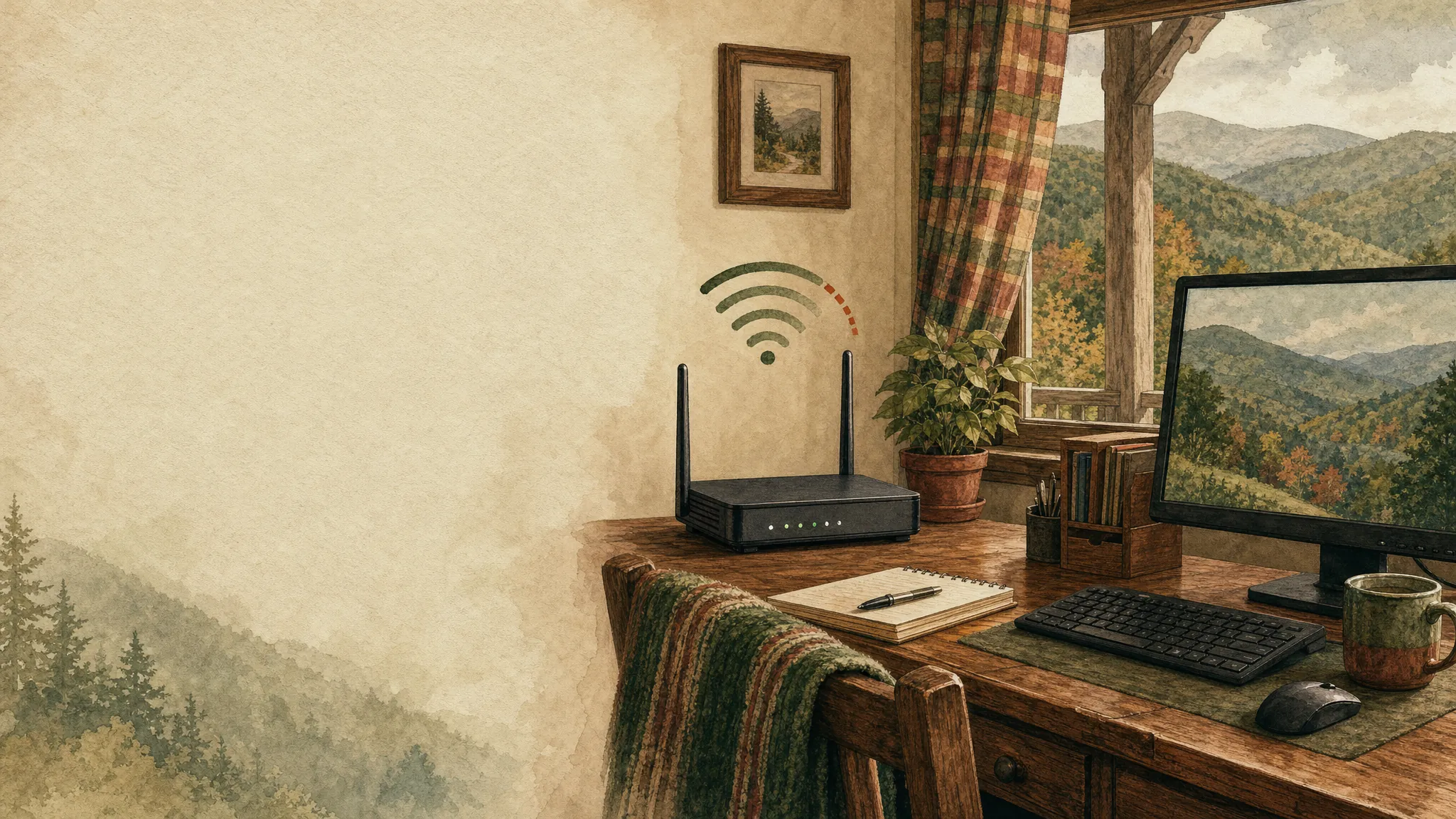
Wi-Fi that drops out is frustrating because the cause is not always where it first appears. A video call may freeze, a printer may disappear, or one computer may lose connection while everything else seems fine. Before changing passwords or buying new equipment, take a moment to notice what is actually disconnecting.
See whether it affects one device or the whole home
Try another phone, tablet, or computer on the same network. If only one device is having trouble, the issue may be with that device’s saved network, software, or location in the house. If everything disconnects at once, the router, modem, or internet service is a more likely place to start.
Check distance and simple interference
Walls, floors, metal appliances, and a router tucked inside a cabinet can all weaken a signal. If the connection improves when you move closer to the router, do not assume the computer is broken. Put the router in an open, central spot when possible and keep it away from dense clutter.
Restart one piece at a time
Restarting can clear a temporary hiccup, but do it slowly enough to learn something. Start with the affected device. If that does not help, restart the router and give it a few minutes to settle before trying again. If you also have a separate modem, restart it only after the router has been checked.
Do not reset the router in a hurry
A factory reset can erase the network name, password, and provider settings. It is usually a last step, not the first one. Keep a note of any error message, the time of day the problem happens, and whether the issue affects every device. Those details make troubleshooting much quicker.
When it is time to ask for help
If connections keep dropping after the simple checks, Mark can help sort out router settings, device connections, and the practical next step without making you guess. Visit the home Wi-Fi help page or call Mark with what you have noticed.
Related posts
How to Tell If Your Computer Has a Virus
The visible warning signs that deserve attention, the scams that do not, and when it is time to call for help.

Why a computer gets slow, and what to do before replacing it
A practical first pass for slow, freezing, or aging computers.
Is your computer overheating? What to do before it gets worse
What sudden fan noise, warmth, and shutdowns can mean—and the sensible first steps to take.