
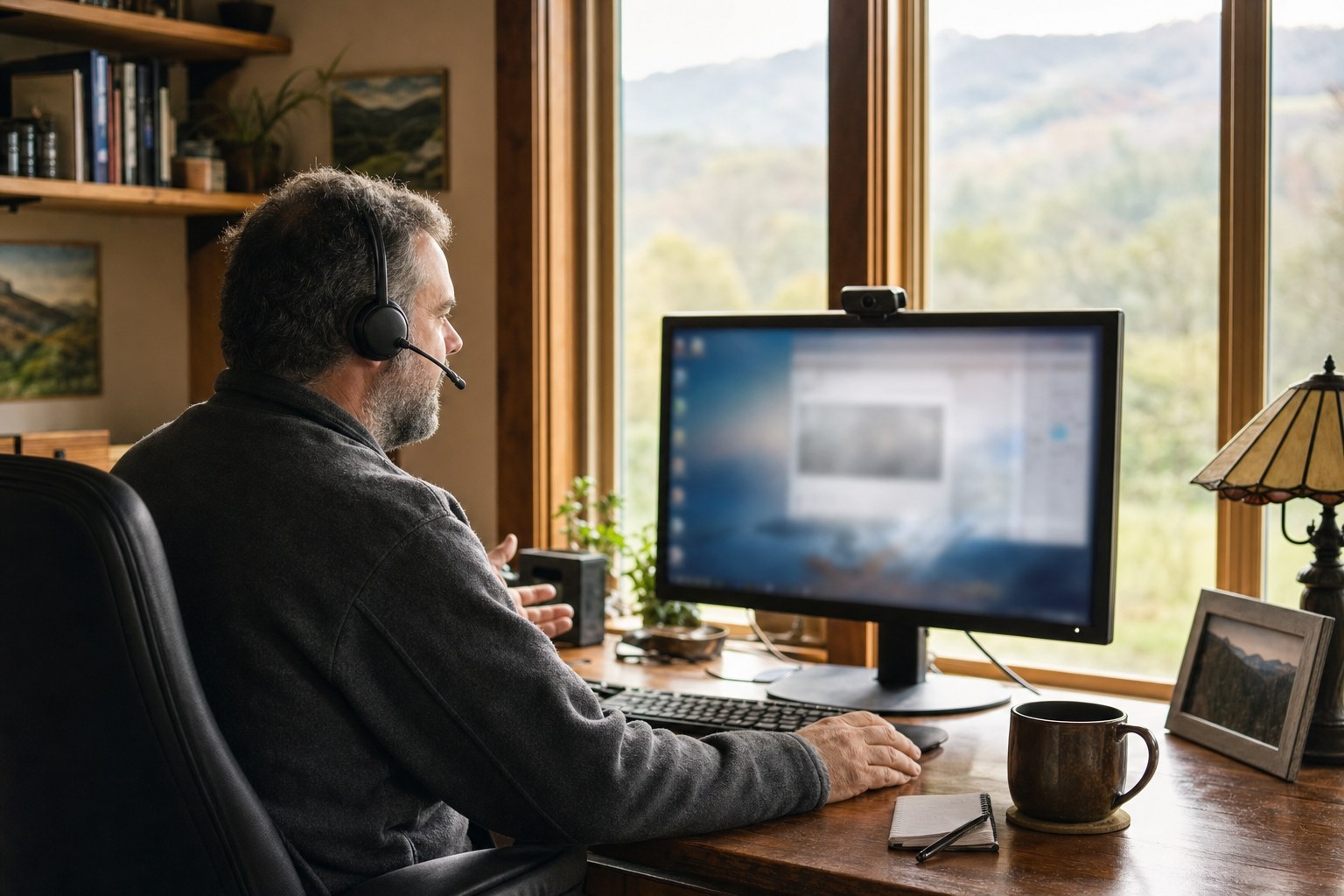
The best remote computer repair is not the service with the loudest promise. It is the one that helps you understand what can be checked safely from where you are, respects your control of the computer, and says plainly when the problem needs hands-on work. That matters because remote help can save a trip for many everyday issues, but it is not magic and it should never be used to pressure someone who is worried or rushed.
A useful remote session can sort out software trouble, printer setup, Wi-Fi questions, updates, unwanted pop-ups, account confusion, and a computer that has become slow. It cannot reconnect to a computer with no internet, replace a broken charging port, cool an overheating machine, or safely recover a failing drive by itself. The right choice starts with matching the service to the problem.
Start with the safest rule: you make the first contact
A legitimate repair session begins because you decided to call, not because a pop-up, caller, or text said there was an emergency. The Federal Trade Commission warns that tech-support scams often use frightening messages or surprise contact to persuade people to give remote access. If a screen tells you to call a number, close it if you can and use contact details you found independently instead.
Before a session, write down the business name, phone number, the problem you are seeing, and any recent change that happened before it started. Ask what the first step will be, what remote program will be used, and how you can end the connection. A clear answer is a good sign. Pressure to act immediately, demands for a gift card, or a request for passwords you do not understand are reasons to stop.
Know what remote help is genuinely good at
Remote repair works best when the computer turns on, reaches the desktop, and stays connected long enough to investigate. That makes it practical for a slow startup, a stuck update, an unfamiliar program, browser trouble, basic printer and scanner issues, common Wi-Fi settings, and many Windows problems. You can stay at the keyboard and describe exactly what changed while the technician sees the same clues.

It is also useful when the problem needs sorting before money is spent. A technician may be able to tell the difference between a settings issue and a likely hardware problem, or between a normal warning and a real security concern. That can keep you from buying a replacement part, a cleanup program, or a new computer before anyone has looked at the actual symptoms.
Look for a service that explains the boundary
Good remote support includes a clear “this is better in person” line. A computer that will not start, drops off the internet, has a cracked screen, gets unusually hot, has a loose charger, makes clicking or grinding sounds, or repeatedly shuts down may need physical testing. If a laptop battery is swollen, the case is separating, or there is smoke, heat, or a burning smell, stop charging and using it rather than trying to begin a remote session.
File safety is another boundary. If the drive disappears, files become unreadable, Windows asks to format storage, or the computer is unstable enough to interrupt work, pause before installing tools or trying a reset. Mark’s data recovery help explains the safer next step when the priority is protecting family photos, business records, school work, or other important files.
Pay attention to how access is handled
A remote tool is simply a way for you to share your screen or let a helper work while you watch. Microsoft’s Quick Assist guidance explains the basic idea: one person gives help and the other person allows the connection. The important part is not a particular app. It is that you know who is connecting and that you have not handed over control because someone surprised you.
Stay at the computer for the session. Close banking, tax, medical, work, and other private pages first. Do not read passwords or two-step verification codes aloud. If anything feels different from what was explained, end the connection and ask why before allowing more work. For a fuller scam-safety checklist, read how to tell a real remote-support session from a scam.
Ask what happens if the first fix does not work
Computer trouble does not always have one obvious cause. A reliable repair service should be willing to say what was checked, what the clues mean, and what the next sensible option is. That might be a hands-on inspection, a replacement part, a backup conversation, or simply time for an update to finish. Vague promises to “clean” or “optimize” everything without explaining the issue do not give you much to evaluate.
It is reasonable to ask about price, how the session is billed, what information you should have ready, and whether the service can help with your exact device. It is also reasonable to decide that a repair is not worthwhile. Clear expectations reduce the chance of being surprised, and they make it easier to compare help based on what you actually need rather than a generic unlimited-support claim.
Use the symptoms to choose the right kind of help
Choose remote help when the computer starts, the internet is steady, and the issue appears to be software, settings, a printer, Wi-Fi, an account, or a performance problem. If your computer is connected to Wi-Fi but nothing will load, the connected-but-offline guide can help you narrow down whether the computer, router, or provider is the likely starting point. If it is painfully slow but stable, the slow computer help service is a useful path.
Choose hands-on repair or a careful diagnosis when the clues point to a part, power, heat, a damaged connection, or storage trouble. A service that gives you that honest direction is doing its job. The aim is not to force every problem into remote support. It is to get the right answer with the least disruption and risk.
How Mark can help
Mark offers remote-first computer help from Mountain City, Tennessee for many problems that can be safely assessed while you stay at the computer. You initiate the session, can watch the work, and can ask questions as the problem is narrowed down. If the symptoms suggest a physical repair, data concern, or another specialist, he will explain that clearly rather than pretending every problem belongs on a remote connection.
Start with remote computer help when your computer is running and connected, or call Mark when you want a plain-language opinion on the next step. Bringing a short list of symptoms, any exact error message, and the timing of the problem makes the conversation faster and more useful.
Frequently asked questions
It can be safe when you contact a business yourself, know who is connecting, stay at the computer, and can end the session whenever you choose. An unexpected pop-up, call, text, or email asking for access is a warning sign, not a safe starting point.
Many software, account, printer, Wi-Fi, update, and performance problems can be investigated remotely when the computer starts and has a stable internet connection. A good technician should explain when the symptoms point to a physical repair instead.
Choose a hands-on assessment when the computer will not turn on, cannot stay connected, has a damaged screen or charging port, is swollen or unusually hot, makes mechanical noises, or may be losing important files.
Mark starts only after you contact him directly. You remain at the computer during the session, can see what is happening, and get a plain-language explanation if the problem needs a different repair path.
Related posts
How to Tell If Your Computer Has a Virus
The visible warning signs that deserve attention, the scams that do not, and when it is time to call for help.

Why a computer gets slow, and what to do before replacing it
A practical first pass for slow, freezing, or aging computers.
Why your Wi-Fi keeps disconnecting, and what to check first
A calm way to narrow down dropped connections before changing every setting in the house.