

When your computer says it is connected to Wi‑Fi but pages will not load, the message feels contradictory. It is not. Wi‑Fi is the short-distance connection between your device and the router in your home. Internet service is the connection from that router out to the rest of the world. Those are two separate links, so a laptop can be happily joined to the home network while the internet connection beyond it has stopped working.
The most useful first move is not to reset every setting. It is to work out where the break is. If every phone, television, tablet, and computer in the house is offline, start with the modem, router, or internet provider. If everything else works but one Windows computer does not, stay focused on that computer. That simple split saves time and helps avoid changing a router password or factory-resetting equipment that was never the real problem.
1. Check whether the problem is one device or the whole home
Try one other device on the same Wi‑Fi network. Open a familiar website, not just an app that may still show saved content. If a phone and another computer both work, the router probably still has an internet connection and the problem is likely isolated to the affected device. If nothing works, look at the router and modem before digging into Windows settings.
Also look for a service alert from your internet provider using cellular data, or call the provider if you cannot get online any other way. A neighborhood outage, maintenance issue, or account problem cannot be fixed by changing a laptop setting. If the modem has a red or flashing warning light, make a note of it instead of guessing what it means; the meaning varies by provider and equipment model.
2. Make sure it is really an internet problem
Sometimes Wi‑Fi is working and only one website, app, or account is having trouble. Try two or three unrelated sites in a browser. If ordinary pages load but one program will not, do not reset the whole network just yet. The app may need to sign in again, its service may be having trouble, or a firewall setting may be involved.
On the other hand, if browsers, email, video, and cloud files all fail, you have a broader connection issue. Microsoft explains that Windows can show a “No Internet” state when the PC is connected to the local Wi‑Fi network but cannot reach the internet. Its current Wi‑Fi troubleshooting guide uses this distinction to help identify the next check.
3. Turn Wi‑Fi off and reconnect once
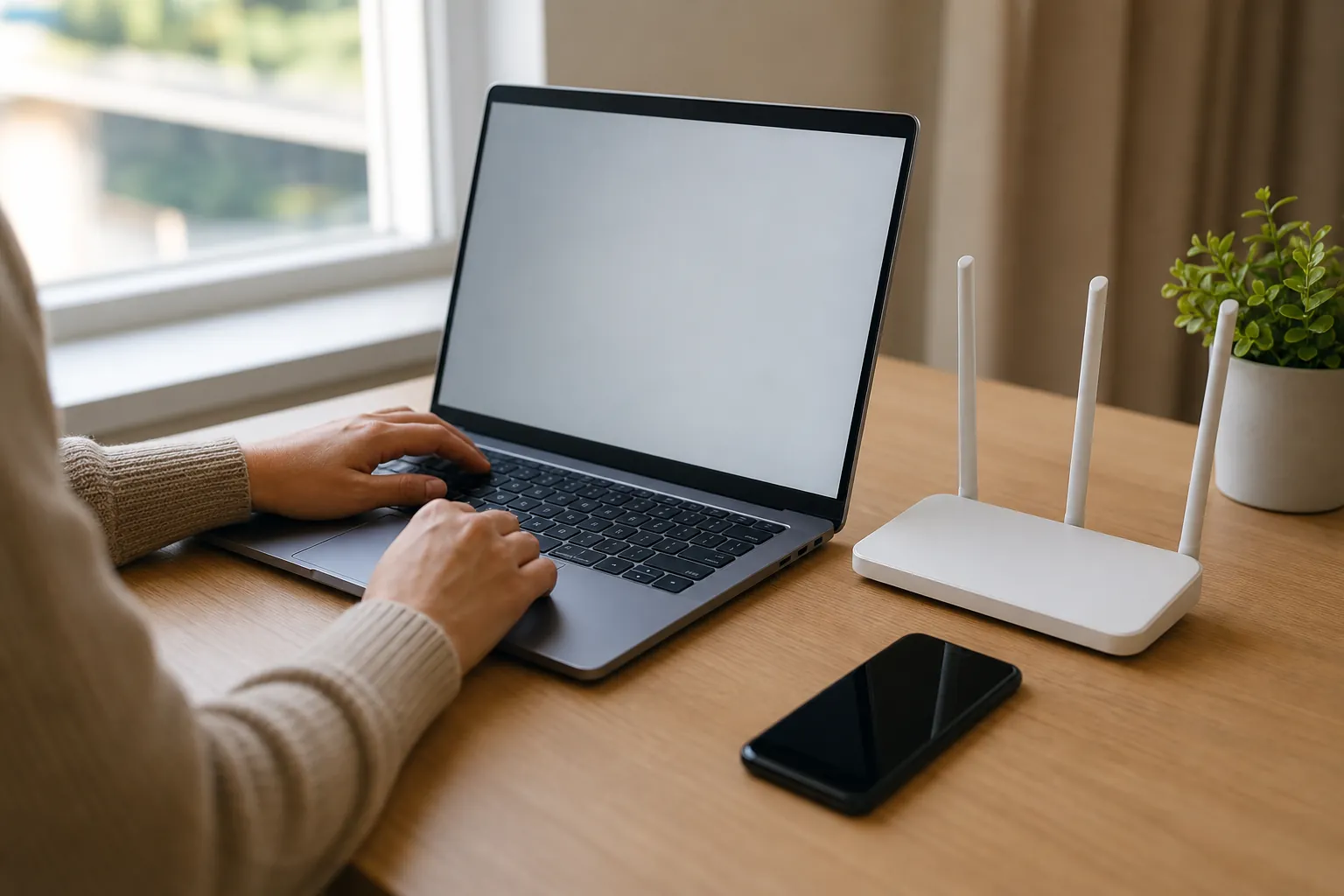
On the affected Windows computer, select the network, sound, or battery icon near the clock. Turn Wi‑Fi off, wait a few seconds, turn it back on, and reconnect to your normal home network. Enter the password only if Windows asks. This is a small reset of the connection, not a risky change.
Pay attention to what happens next. If the computer reconnects and internet access returns, the issue may have been a temporary hiccup. If it reconnects but still says “No internet,” note whether the signal looks strong and whether other devices are online. If it keeps joining the wrong saved network, such as an old extender or guest network, forget that network only when you know the correct Wi‑Fi name and password.
4. Restart the equipment slowly enough to learn something
If every device is offline, a restart may help. Do not press the small reset button or hold it down—that is usually a factory reset and can erase the network name, password, and provider settings. Instead, use the normal power button or unplug the power cord for the equipment your provider supplied.
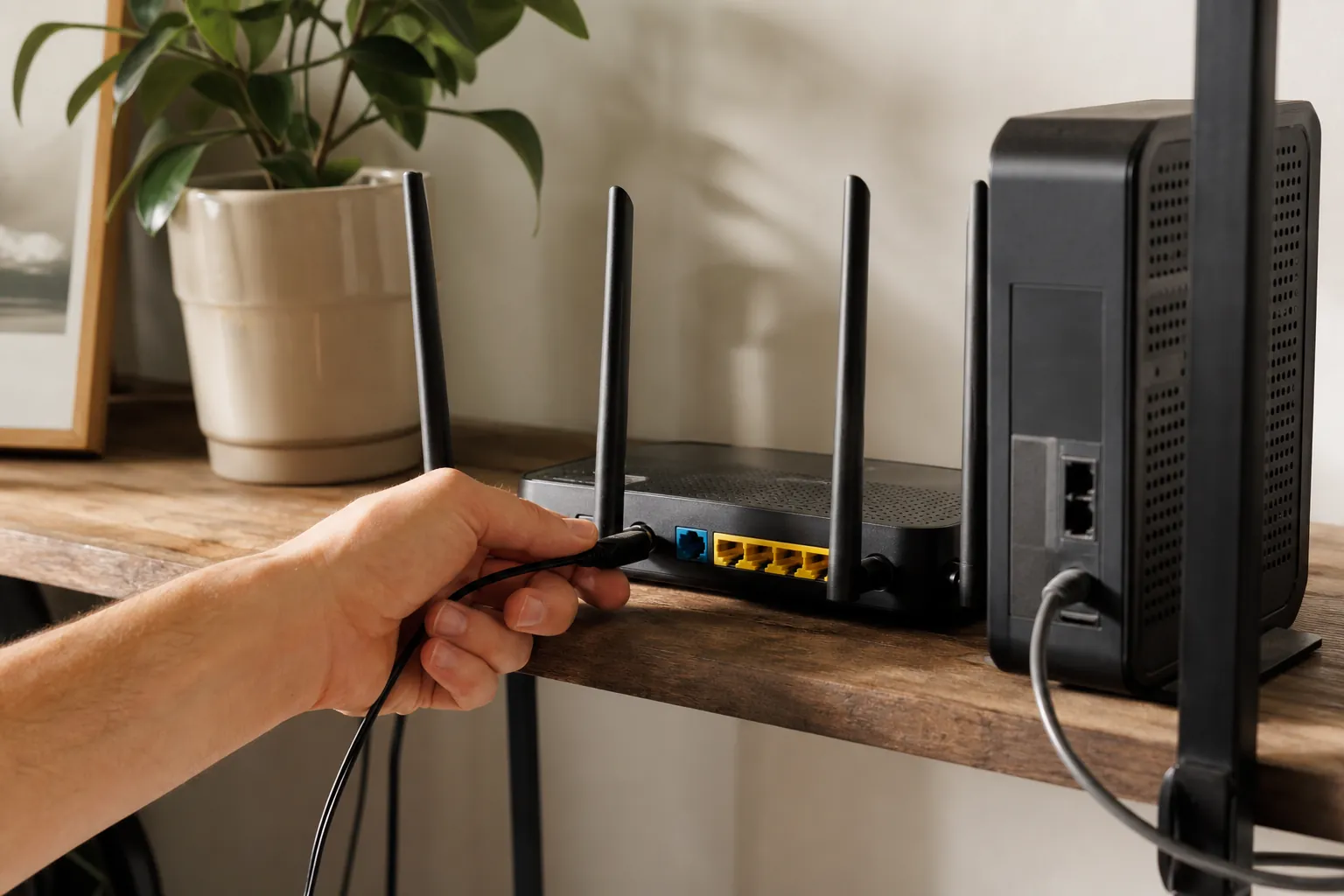
Many homes have a combined modem-router gateway. Others have two separate boxes: a modem that connects to the cable, fiber, or phone line, and a router that creates Wi‑Fi. If you have separate equipment, power down the router and modem, wait about a minute, then bring the modem back first. Give it time to establish service before turning on the router. The lights may take several minutes to settle. Once the Wi‑Fi network returns, test one device before changing anything else.
5. Check the cable and the place where service enters the home
A Wi‑Fi signal can look perfectly strong while the modem’s connection to the provider is loose or down. Look for a cable that has been bumped, a power strip switched off, or a modem that is unusually hot. Reseat a loose power or network cable gently, but do not disconnect unfamiliar cables from wall outlets, fiber boxes, or outdoor equipment.
If the trouble began after a storm, a power outage, moving furniture, or replacing a router, that detail matters. A modem can take longer to reconnect after a power interruption, and a new router may not have been fully set up for the provider. Write down the light pattern and the time the problem began. It gives the provider—or Mark—a much clearer starting point than “the internet is broken.”
6. Temporarily disconnect a VPN or manual proxy
A work VPN, privacy VPN, or manual proxy can stop internet access even though Wi‑Fi is connected. If you knowingly use one, disconnect it temporarily and try a browser again. Do not uninstall a work program or remove security software to test this. You only need to see whether the normal connection returns when the VPN is off.
For proxy settings, go to Settings > Network & internet > Proxy. Most home computers do not need a manually entered proxy server. If you see one that you do not recognise, take a picture or note the setting before changing it. A work or school computer may rely on managed settings, so it is better to ask the organization’s support team before disabling anything you were given.
7. Let Windows check the connection before using advanced commands
Windows includes a network troubleshooter that can check common connection issues. In Windows 11, start at Settings > System > Troubleshoot > Other troubleshooters, then run the Network and Internet option. In Windows 10, open Settings > Network & Internet > Status and look for the Network troubleshooter. Follow the prompts and read what it reports rather than clicking through quickly.
If Windows shows a message about an IP address beginning with 169.254, the computer probably did not receive a normal address from the router. Microsoft identifies that as a clue that the PC could not obtain an address from the home network. That does not mean you need to manually assign numbers. It means the router connection, saved network, or adapter needs closer attention.
8. Renew the connection only if the basic checks did not help
For a Windows computer that is the only device affected, Microsoft suggests renewing the IP configuration and flushing the DNS cache as later checks. Open Command Prompt as an administrator and enter one command at a time: ipconfig /release, then ipconfig /renew, then ipconfig /flushdns. These ask Windows for a fresh local network address and clear stored website lookups.
Do not run long lists of commands from an unfamiliar video, and do not change the registry to chase a one-time problem. If the commands return an error, or the connection immediately fails again, stop there. The exact message is useful evidence. A quick photo of the result can help determine whether the issue is the Wi‑Fi adapter, router, provider, or a setting that needs to be restored.
9. Check the Wi‑Fi adapter only after the simple steps
If other devices are online and the same Windows computer repeatedly loses internet access, the Wi‑Fi adapter may need attention. Start with a normal Windows restart and check whether the computer has recently installed an update. A laptop with a physical wireless switch or function key can also have Wi‑Fi disabled accidentally, even though a saved network is still visible in its settings.
For a desktop using a small USB Wi‑Fi adapter, make sure it is firmly connected and try another USB port. Do not download a driver from a random search result. If a driver update is needed, use the computer maker’s support page or the adapter maker’s official page, and make sure the model matches before installing anything. A wrong driver can create more problems than the original connection issue.
Device Manager can show whether Windows sees the adapter and whether it reports a warning symbol. That is useful information, but deleting devices or changing advanced adapter settings should not be the first move for a home user. If the connection works after a restart but fails again later, note the time, the program you were using, and whether the computer was moved. Those details are often more valuable than an aggressive reset.
10. Do not factory-reset the router as a first response
A factory reset is not the same as restarting. It can erase the Wi‑Fi name, password, parental controls, device settings, and sometimes the provider’s connection setup. It is reasonable only when you have the correct setup information, the internet provider has ruled out an outage, and simpler checks have failed. For many people, that is a job best done with someone who can keep the household connected afterward.
The same caution applies to Windows network reset. It can remove saved Wi‑Fi networks and reset network adapters. It can be useful for a stubborn single-computer problem, but it belongs near the end of the process—not before you know whether every other device is also offline.
When to call your provider and when to call Mark
Call the internet provider when every device is offline, the modem will not establish service, the provider reports an outage, or the line entering the home appears to be the issue. They are the right people to check the service coming to the house. Call Mark when the service works on other devices but one computer, printer, television, or router setup still will not cooperate.
Mark can help sort out saved networks, router settings, device connections, and the everyday Windows issues that make a working connection look broken. Remote help is available nationwide when the computer is online enough to start a customer-approved session. Visit remote computer repair to see how it works. The home Wi‑Fi setup and troubleshooting service is a good fit for a new router, a device that will not reconnect, or a network that needs a calmer, more systematic check. If the connection keeps dropping rather than staying connected with no internet, the Wi‑Fi keeps disconnecting guide covers that different problem.
A short checklist before you ask for help
Before you call, have the computer on and note whether another device can get online. Write down the Wi‑Fi network name, any exact message on the screen, the modem or router light pattern, and whether the trouble began after an outage, a new device, or a change to the home setup. Do not share your Wi‑Fi password publicly or with an unexpected caller. Those few details let a support session begin with the right question and usually save a lot of trial and error.
Frequently asked questions
Your device can successfully join the Wi-Fi network inside your home even when the router cannot reach the internet. The trouble may be with one device, the router or modem, the cable connection, a service outage, or a setting such as DNS, VPN, or proxy. Checking a second device first is the fastest way to narrow it down.
A careful restart can clear a temporary connection problem. First check whether another device is online. If nothing is working, restart the modem and router in the order recommended by your internet provider, allowing each device enough time to reconnect. Avoid a factory reset unless you have the provider setup details and have exhausted simpler checks.
Yes. A VPN, manual proxy setting, security program, or work connection can interrupt access even when Wi-Fi itself is connected. Disconnect the VPN temporarily and turn off only settings you recognise. If the connection returns, note what changed before turning anything back on.
On Windows, an address beginning with 169.254 often means the computer did not receive a normal address from the router. That points to a local connection or router issue rather than a problem with a particular website. Microsoft includes it as a useful clue when diagnosing limited connectivity.
Related posts
How to Tell If Your Computer Has a Virus
The visible warning signs that deserve attention, the scams that do not, and when it is time to call for help.

Why a computer gets slow, and what to do before replacing it
A practical first pass for slow, freezing, or aging computers.
Why your Wi-Fi keeps disconnecting, and what to check first
A calm way to narrow down dropped connections before changing every setting in the house.