
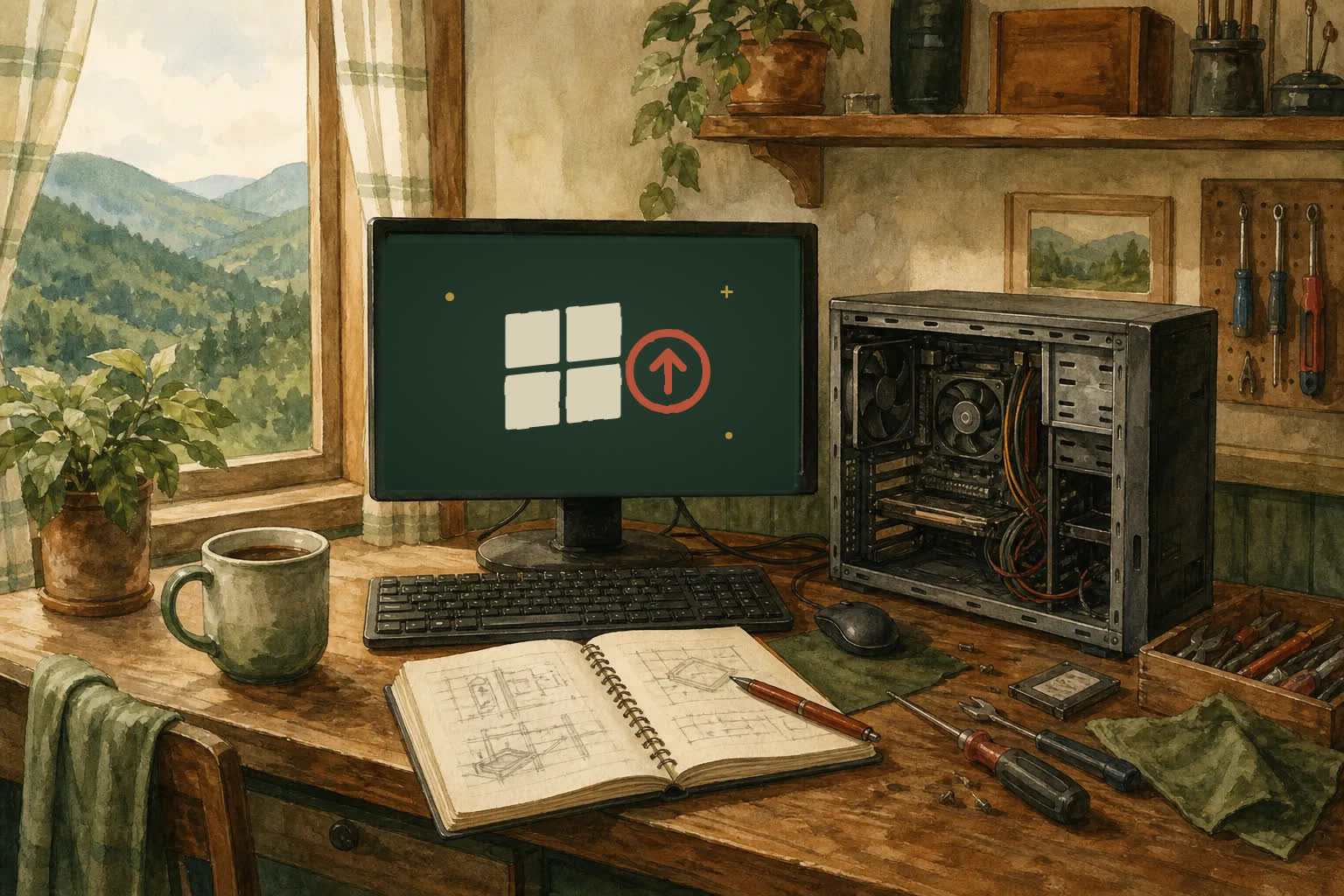
Microsoft ended regular support for Windows 10 on October 14, 2025. For home users who signed up for the free extra year of Extended Security Updates (ESU), that extra year ran out on October 13, 2026. If your computer still runs Windows 10, it will keep starting and working tomorrow the same way it did yesterday. What has stopped is the steady stream of security fixes that patch new holes as they are found.
That does not mean you need to panic or buy the first computer you see. It means it is time to make a calm decision: upgrade the computer you have to Windows 11 if it qualifies, replace it if it does not, and protect your files either way. This guide walks through each step in plain language, and it points out the scam calls that tend to show up whenever Windows makes the news.
1. What “end of support” actually means
Your programs, photos, and documents do not disappear, and Windows 10 does not shut itself off. You can still browse, print, and open your files. The change is that Microsoft no longer releases security updates or technical help for Windows 10 on home computers. Over time, new security problems will be found that never get fixed on Windows 10.
Some programs will also stop supporting Windows 10 as the months go by. Banking sites, tax software, printers, and browsers usually keep working for a while, then quietly drop older systems. A computer that handles email, online shopping, or banking is the one where waiting carries the most risk.
2. Check whether your PC can run Windows 11
Windows 11 is a free upgrade for computers that meet Microsoft’s requirements. The main ones are a supported 64-bit processor (generally Intel 8th generation or newer, or AMD Ryzen 2000 series or newer), at least 4 GB of memory, 64 GB of storage, UEFI with Secure Boot, and a security chip called TPM 2.0. Many computers sold in 2018 or later qualify. Many older ones do not, even if they still feel fast enough.
The easiest check is Microsoft’s free PC Health Check app, or Settings › Update & Security › Windows Update, which often shows a Windows 11 offer when the computer qualifies. If it says the PC does not meet the requirements, write down the reason it gives. Sometimes it is a setting that can be turned on, such as TPM or Secure Boot. Sometimes it is the processor, and that cannot be changed.
3. If your PC qualifies, back up first and then upgrade
Before any big upgrade, copy the files you cannot replace to a second place: an external drive, a cloud account you already use, or both. That means documents, photos, tax records, saved passwords you rely on, and anything for work or business. An upgrade usually keeps everything in place, but a backup turns a bad day into a minor delay.
Plug a laptop into its charger, give yourself time when you do not need the computer, and let Windows Update do the work. The upgrade can take an hour or more and restarts several times. Afterward, check that your printer, email, and important programs still open. If the computer was slow on Windows 10, a cleanup or an SSD upgrade often makes a bigger difference than the new version of Windows does.

4. If it does not qualify, plan the replacement
There are online tricks that force Windows 11 onto unsupported computers. Mark does not recommend them for an everyday computer. Microsoft does not promise updates on those machines, and a computer that might stop updating again later puts you back in the same spot.
If the computer is several years old, replacing it is usually the sensible move. You do not need the most expensive model. For email, browsing, and documents, look for a solid-state drive (SSD), at least 8 GB of memory, and Windows 11 already installed. If you are unsure what to buy, call Mark before you shop and he can tell you what is worth paying for.
Once you have a new computer, the job is moving your life over to it: files, photos, browser bookmarks, email accounts, and the printer. Mark offers new computer setup and a standard file transfer from your old computer, so you are not sitting with two machines and a stack of passwords trying to remember where everything lives.
5. If you keep using Windows 10 for now
Some people need a few more weeks or months. If that is you, lower the risk: keep your browser and antivirus updated, do not open unexpected attachments, avoid banking or shopping on that computer when you can use a newer device, and keep a current backup. Treat the Windows 10 computer as the one you trust least.
Small businesses are in a different spot. Organizations could buy paid Extended Security Updates for Windows 10 for longer than home users, but that only makes sense as a bridge to replacement. If your business still has Windows 10 machines, see Mark’s small business computer support for help planning the switch.
6. Watch out for Windows 10 scam calls and pop-ups
Every big Windows change brings a wave of scams. A caller says they are from Microsoft and your computer “must be upgraded today.” A pop-up says Windows 10 has expired and gives a phone number. Microsoft does not call people out of the blue, and it does not put support phone numbers in browser warnings.
Do not let an unexpected caller connect to your computer, and do not pay for an “upgrade” with gift cards. If something like this already happened, read how to tell a real remote-support session from a scam, then call Mark. He can check the computer for viruses and unwanted remote-access tools and help you change the passwords that matter.
When to call Mark about Windows 10
Call if PC Health Check says your computer does not qualify and you are not sure why, if you want help backing up before the upgrade, if the upgrade fails or keeps rolling back, or if you bought a new computer and want everything moved over properly. Mark can help with many of these over a customer-started remote session, and he will be straight with you when a computer is not worth putting more money into.
Clear prices are on the pricing page: new PC setup is part of the $49 Quick Fix, a standard file transfer or data recovery is $99 plus parts in the shop, and a fresh Windows install with backup is $130. To see how remote sessions work before you call, read how remote computer help works.
A short checklist before you call
Have the computer’s make and model ready (it is usually on a sticker underneath a laptop or on the back of a desktop). Note what PC Health Check or Windows Update says about Windows 11, what programs and printers you rely on, and where your important files are saved. If you are replacing the computer, keep the old one until everything is confirmed on the new one.
Frequently asked questions
No. It will keep turning on and running your programs. It just no longer receives security updates from Microsoft, so it becomes riskier to use online over time.
Yes, for computers that meet Microsoft’s requirements. It is offered through Windows Update. Be wary of anyone who calls or emails asking you to pay for a Windows 11 upgrade.
Run Microsoft’s free PC Health Check app or look in Windows Update. If it says the PC does not qualify, note the reason. A setting such as TPM or Secure Boot can sometimes be turned on; an unsupported processor cannot be changed.
Yes. Mark offers new computer setup and a standard file transfer from your old computer or drive, so your documents, photos, and settings end up in the right place.
Related posts
How to tell a real remote-support session from a scam
A few simple rules can keep an unexpected computer-support call from becoming an expensive mistake.
Why a computer gets slow, and what to do before replacing it
A practical first pass for a computer that takes forever to start, freezes, or suddenly feels old.
How to Know If You Got Hacked: Signs to Check
The warning signs to take seriously, the first accounts to secure, and how to avoid making a security concern worse.