
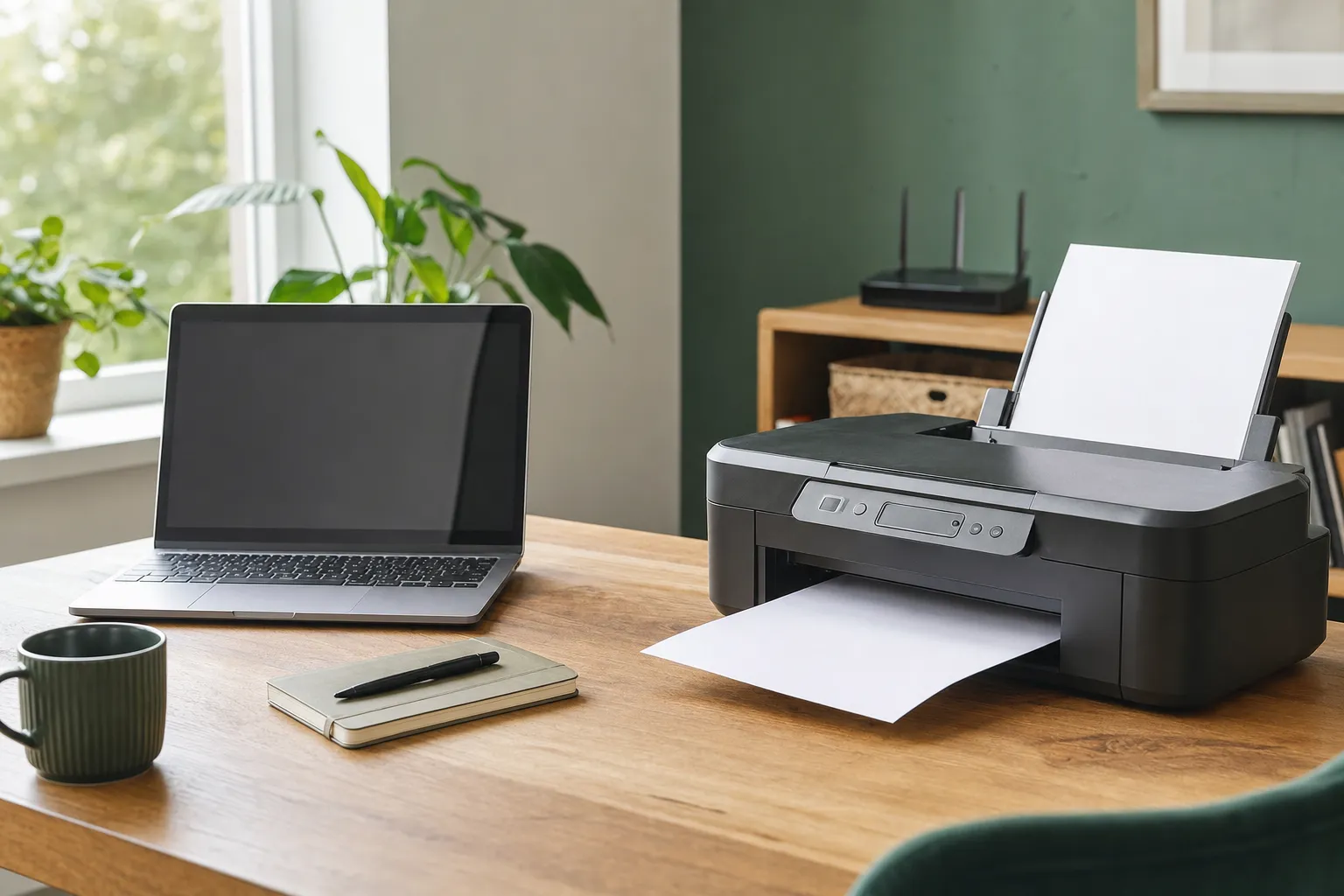
What printer setup help can include
Printer setup is more than plugging in a cable and hoping the computer finds it. A reliable setup starts with the way you actually plan to use the printer. You may need a basic home printer for letters and forms, a scanner for paperwork, or a device that works from more than one computer. Mark can help put those everyday tasks in place without making the process feel like an all-day project.
Get the printer, computer, and Wi-Fi on the same page
Many printer problems begin before there is an error message. The printer may be on the wrong Wi-Fi network, the computer may still be looking for an older device, or the setup software may not have finished. A printer can also appear in the computer’s list while still not being ready to receive a print job. Mark can help check the connection in a sensible order rather than having you reinstall the same app several times.
If you recently changed your router, internet provider, or Wi-Fi password, the printer may simply need to be connected again. That is especially common with a printer that worked perfectly before a move, a power outage, or a new computer. For broader connection trouble around the house, Mark can also help through the home Wi-Fi setup service. The goal is to understand whether the issue is the printer, the computer, or the network before buying new equipment.
Install what you need, not a pile of unwanted extras
A new printer often comes with a download link, a QR code, and several optional programs. Some of that software is useful, especially for scanning or checking ink levels. Some of it is not necessary for the basic jobs you want to do. Mark can help make sure the correct driver and useful tools are installed while avoiding extra programs that only add notifications or confusion later.
This matters when you use the printer for more than one task. Printing a form may work while scanning to your computer does not. A printer may be ready for one Windows account but not another. If you use email, cloud storage, or a particular program for work or school, testing the complete path is more useful than stopping after a single test page. Mark can help you check the functions you actually rely on.
Fix the common problems that show up after setup
Sometimes the printer is not new at all. It may say “offline” even though it is turned on, hold a job in the queue forever, or print from one computer but not another. A stuck document, a driver that no longer matches a system update, a sleeping printer, or a lost wireless connection can all cause the same frustrating result: nothing happens when you click Print.
Mark can help trace that kind of problem without asking you to guess your way through unfamiliar menus. It helps to note the printer brand and model, whether it is connected by Wi-Fi or cable, and any message shown on the screen. If there is an error code, take a photo before clearing it. Those small details can save time and make it easier to find the real cause.
What to have ready before you call
You do not need to be a computer expert before getting help. Keep the printer powered on and close enough that you can reach its buttons or screen. Have plain paper loaded if possible, and keep any cable that came with the printer nearby. It is helpful to know your home Wi-Fi password and the email address you use for any printer account, but do not share passwords until you have called Mark directly.
It also helps to decide what success looks like before the session begins. Maybe you need to print forms from one laptop, scan receipts into a folder, or make sure another family member can use the same printer. Sharing that goal early lets Mark focus on the settings that matter instead of treating every printer feature as equally important. You will have a setup that suits how you actually use the device.
When remote setup is the right fit, and when it is not
Remote help works well when the printer turns on and the problem is connection, software, setup, or a print queue. You remain at the printer throughout the session, so Mark can guide you through a button press or a network choice when needed. You can watch what is happening on your computer, ask questions, and end the connection whenever you choose.
A paper-feed failure, broken tray, ink leak, damaged cable port, or printer that will not power on is different. Those are physical problems, and a remote session should not pretend otherwise. Mark will be direct about that and help you decide whether the device is worth repairing, replacing, or taking to a local service option. For an existing printer with broad printing, scanning, or error problems, the printer and device help serviceis also available.
Keep your first call simple and safe
Start by calling Mark directly at 423-440-1899. Explain the printer model if you know it, what it is doing, and whether the problem began after a new computer, router, or update. If remote help is a good fit, Mark will guide you through a temporary connection while you stay at your computer. You do not need to respond to an unexpected call, message, or pop-up claiming that your printer needs support.
For a quick setup task that should not take all afternoon, theQuick Fix service may be a practical option. If the printer problem turns out to involve several computers, a home network, or a larger software issue, Mark can explain the sensible next step before any work begins.