
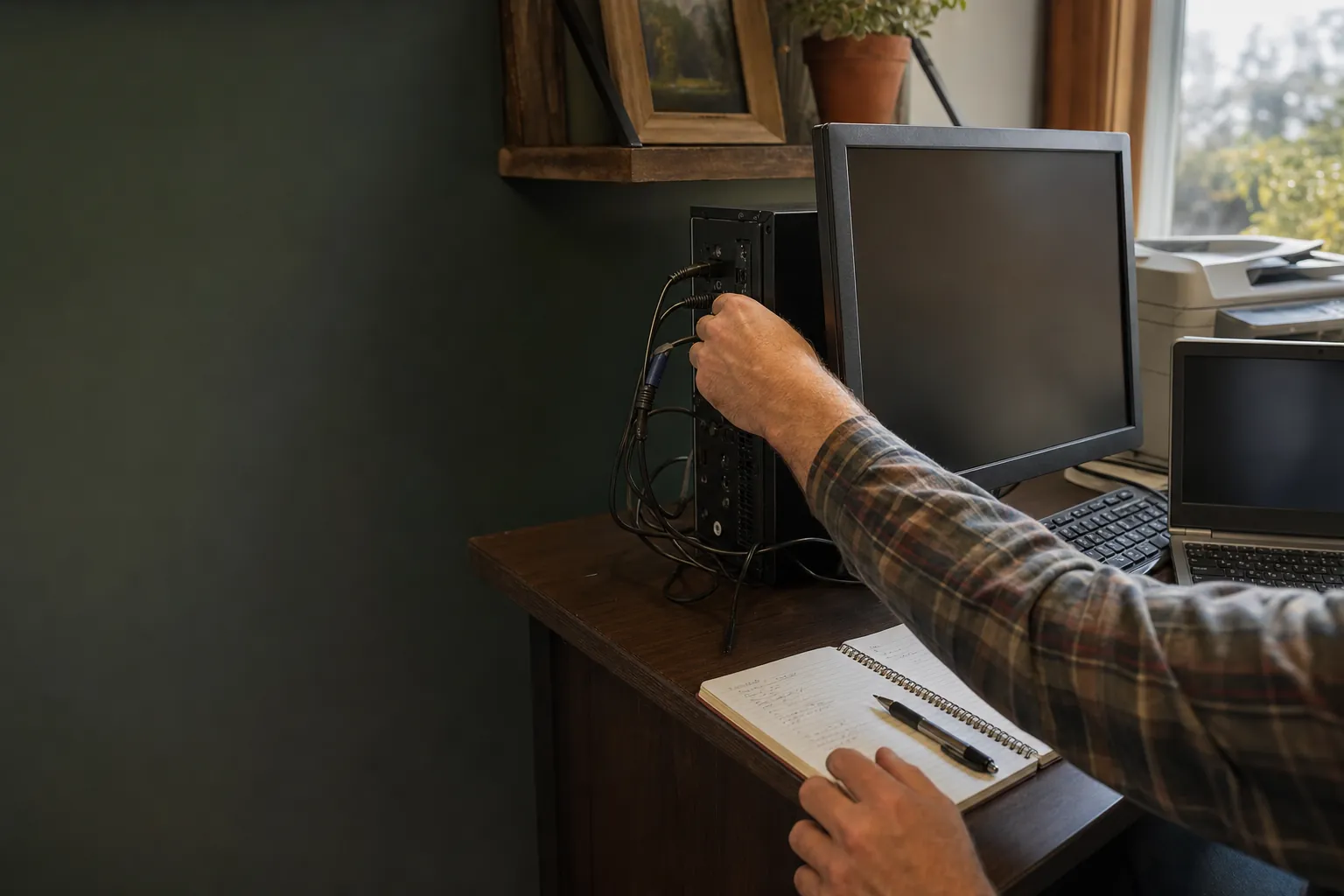
A focused diagnostic for the problems that interrupt business
A computer problem can look simple from the outside. A program will not open, a printer disappears, a shared file cannot be reached, the internet is unreliable, or a computer suddenly takes too long to do ordinary work. But the cause may sit in a different place than the symptom. A printer can be fine while the computer has a stalled queue. A slow program may be affected by storage, an update, a sign-in issue, or the computer itself. A network complaint may be one device, the router, or the internet service.
Mark's business computer diagnostic service is for getting clear about that difference. It begins with what your team needs to get back to doing and what changed around the time the trouble began. From there, Mark can help narrow down the most likely place to investigate. The point is not to make every issue sound serious. It is to avoid spending a working afternoon changing the wrong thing because nobody had a clear picture of the problem.
Start with the symptom, not a guess
The fastest way to get useful help is to start with the practical impact. Perhaps invoices are waiting because a printer is offline. Maybe a laptop cannot reach the files an employee needs. Maybe a desktop freezes every time a certain program opens, or a new computer will not work with the devices that already run the office. Those details are more useful than trying to label the problem before you call.
Mark will ask about the affected equipment, the exact message on the screen when there is one, whether anyone else can still work normally, and whether there was a recent update, outage, move, password change, or new device. That helps separate a one-computer issue from a broader interruption. It also gives you a better record of what happened if the problem needs a follow-up repair or someone needs to make a decision about replacement equipment.
Know when a remote check is the right fit
Many small-business problems can be investigated without taking equipment anywhere. Software trouble, performance slowdowns, user-account questions, printer setup, Wi-Fi settings, browser issues, and computer-to-device connections are often good candidates for a remote session. You begin by calling Mark directly, then choose whether to connect. You stay at the affected computer, can see what is happening, and can ask questions along the way.
Remote work is not a claim that every issue can be solved through a screen. A cracked display, damaged power port, swollen battery, failing charger, leaking printer, or computer that will not power on needs a more honest physical-repair path. The same care matters when a drive clicks, files disappear, or a device asks to be formatted. A diagnostic should help you recognize that risk early, not encourage more attempts that could make important data harder to recover.
Make the next decision easier
The value of a diagnostic is not only finding a setting to change. It is understanding what the business should do after the cause is clearer. A focused repair may be enough for an isolated problem. A recurring mix of computer, printer, and connection issues may point toward ongoing small-business computer support. A drive or folder problem may mean the immediate priority is protecting accessible files. And when a computer is old, unstable, or physically damaged, a repair or replacement decision becomes easier when it is based on the facts in front of you.
Mark keeps that conversation practical. You do not need to commit to a bigger service before you understand the issue. The PC or network diagnostic is listed as a one-time $80 small-business service on the pricing page. If there is a sensible follow-up, you will know why it is being recommended and what problem it is meant to solve.
Protect the work that is already on the computer
A business computer often holds more than one person's work. Estimates, customer records, email attachments, job photos, accounting information, and documents in progress can make a routine repair decision feel more urgent. When the computer is slow, unstable, or showing unusual messages, it is worth saying so before trying a broad cleanup, reset, or reinstall. Those steps may be appropriate later, but only after the risk around the files is understood.
If the business relies on files that would be hard to recreate, regular protection is part of the answer. Mark offers business backup services with daily and weekly copies kept onsite and offsite. A backup plan does not replace a diagnostic when something is already failing, but it can give the business a safer starting point when the next problem appears. Discussing the current issue and the files that matter at the same time helps prevent the fix from overlooking the work that needs protecting.
What to have ready before you call
You do not need to gather technical details or try a long list of fixes before asking for help. Keep the affected computer turned on if it is safe to do so, and have the device or printer nearby if the problem involves one. Note any message that appears on the screen, whether the issue affects one person or the whole office, and what work needs to resume first. If the trouble began after a power outage, new router, new computer, software update, or password change, mention that too.
Call Mark directly at 423-440-1899. Do not send passwords by email or respond to an unexpected call claiming the business needs computer support. If a remote session is the right fit, Mark will guide you through a temporary connection after you have spoken. That keeps the diagnostic focused on the real problem and makes the process easier for a busy business owner or employee to follow.